
Lege fest, welches Team welche Tickets sieht und wer sie schließen oder übernehmen darf.
Decide which team sees which tickets and who may close or claim them.
/ticket – Mitglieder hinzufügen und entfernen, Transcript speichern, ohne Transcript löschen – gibt es eigene Haken. Auch sie sind bei neuen Rollen aus./ticket commands – adding and removing members, saving a transcript, deleting without a transcript – have ticks of their own. They are off for new roles, too.Die Support-Rollen trägst du in Schritt 5 des Panel-Editors ein („Roles Handler“).
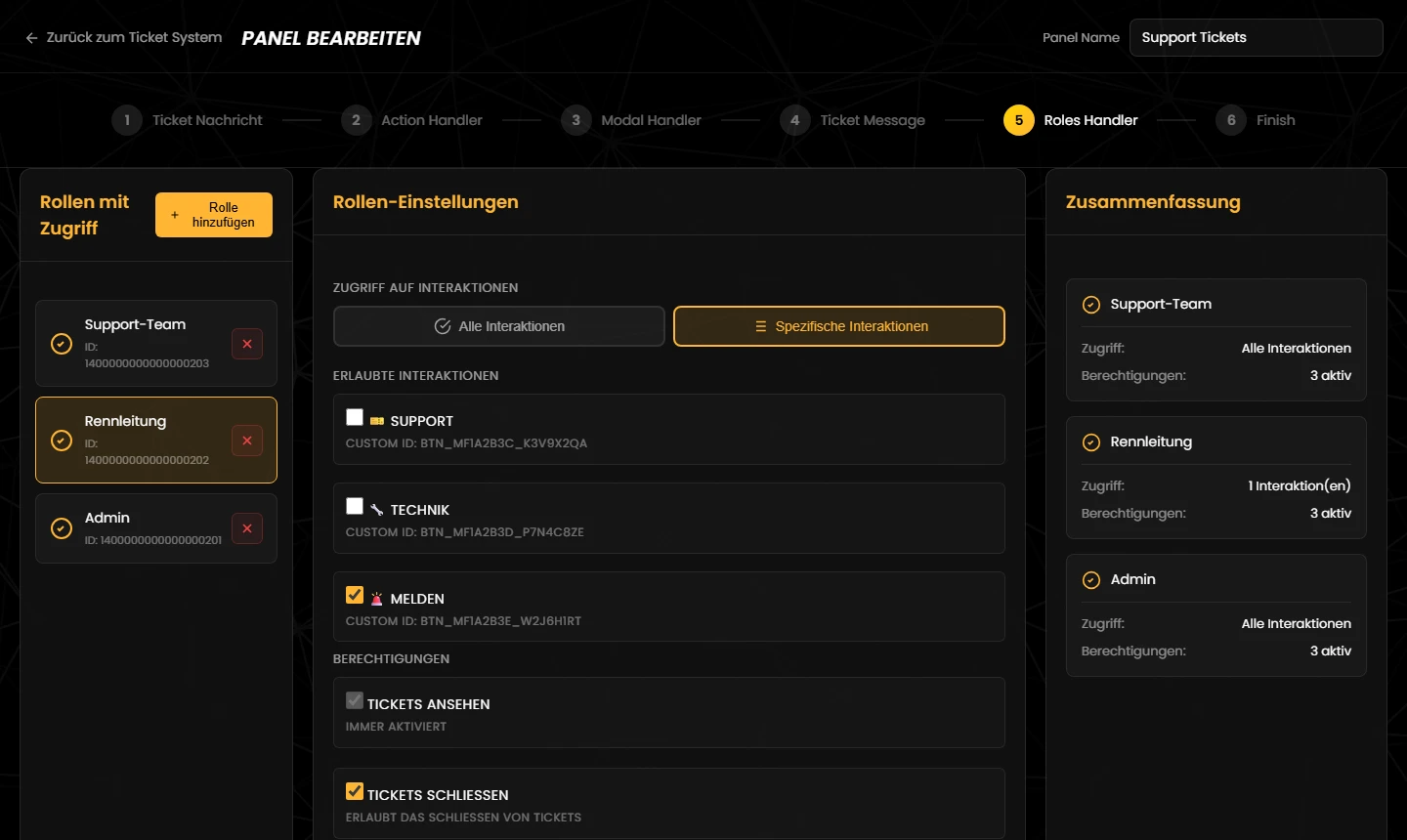
You add the support roles in step 5 of the panel editor (“Roles Handler”).
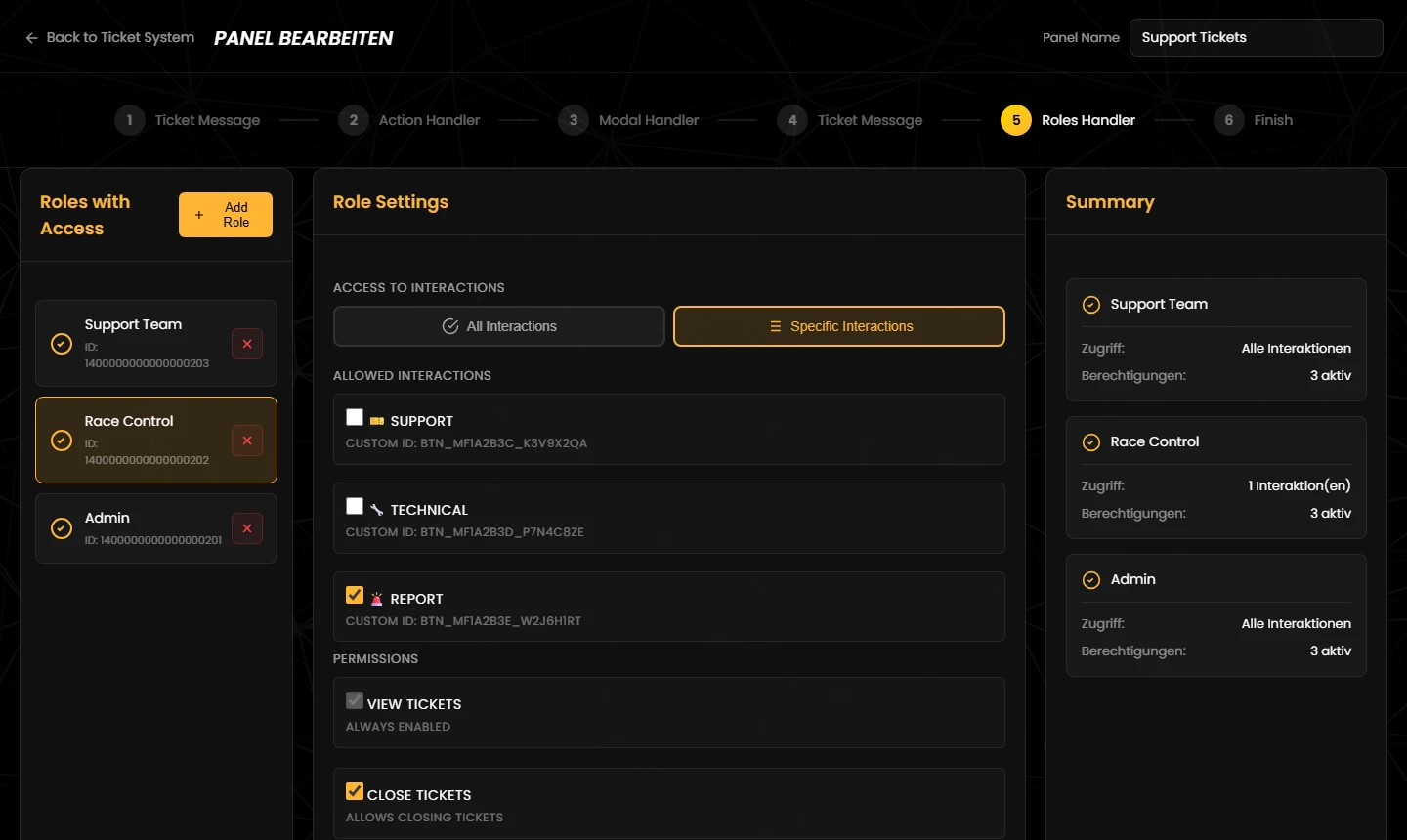
Hier legst du fest, für welche Tickets eine Rolle zuständig ist:
Das gilt auch für den Ping beim Öffnen, fürs Schließen und Übernehmen und für die Befehle /ticket: Eine Rolle mit „Spezifische Interaktionen“ wird nur bei ihren eigenen Tickets erwähnt und kann nur diese schließen, übernehmen oder per Befehl verwalten.
Gut zu wissen: Wechselst du zurück auf „Alle Interaktionen“, verwirft der Editor die Auswahl. Hat eine Rolle mit „Spezifische Interaktionen“ keine Interaktion mehr – etwa weil die Buttons gelöscht wurden –, bekommt sie für neue Tickets keinen Zugang.
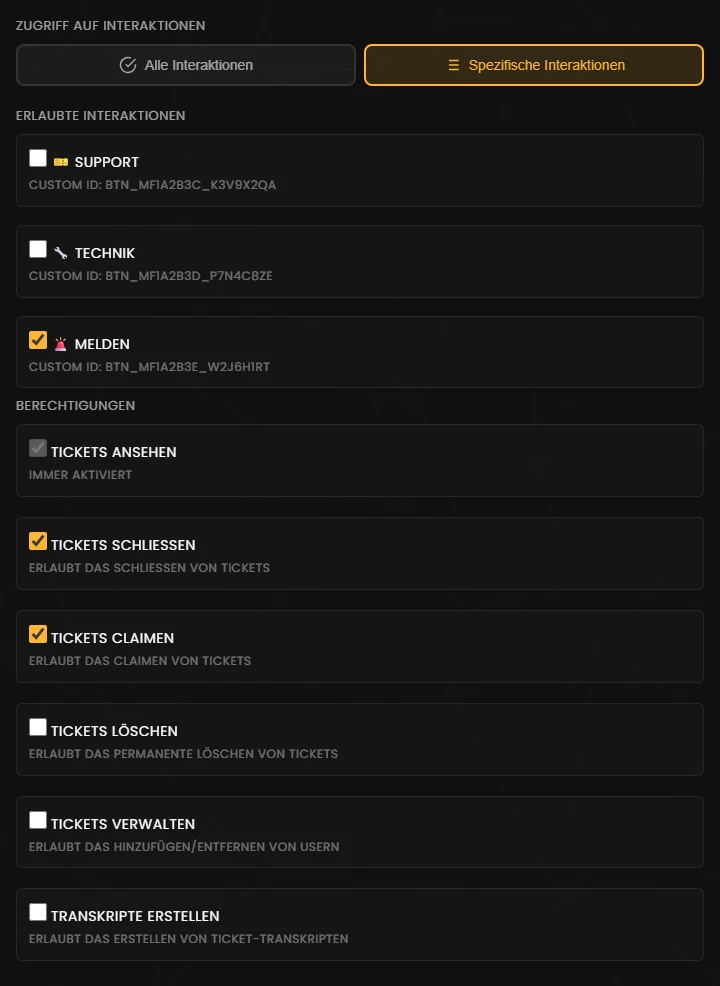
This decides which tickets a role is responsible for:
This also applies to the ping on opening, to closing and claiming and to the /ticket commands: a role with “Specific Interactions” is only mentioned for its own tickets and can only close, claim or manage those with the commands.
Good to know: if you switch back to “All Interactions”, the editor discards the selection. If a role with “Specific Interactions” has no interaction left – for example because the buttons were deleted – it gets no access to new tickets.
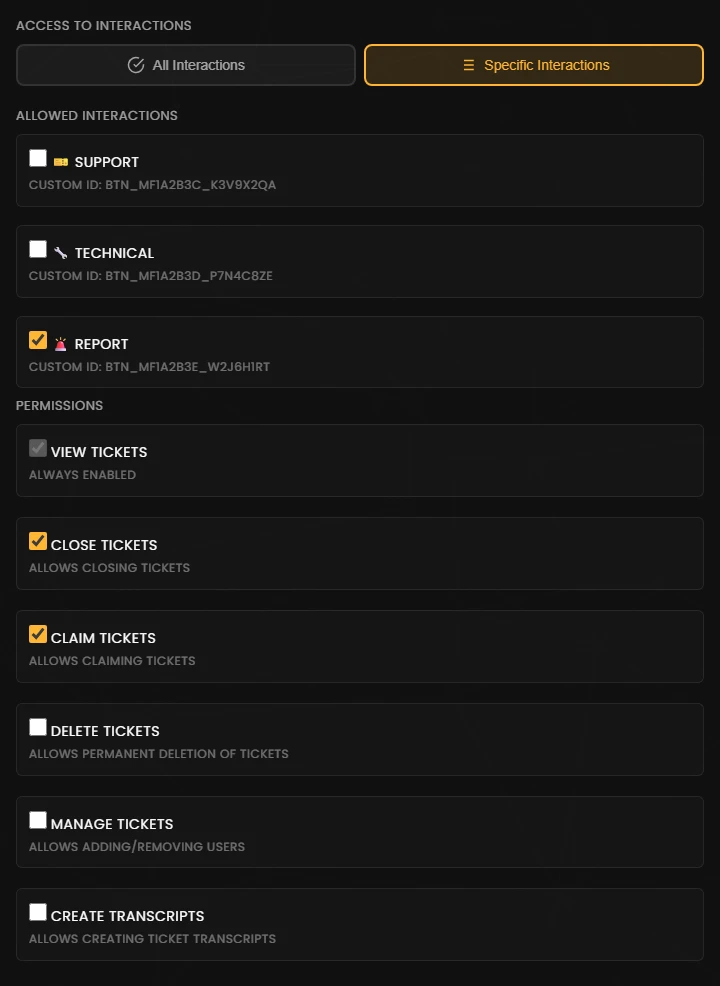
| Berechtigung | Standard | Wirkung |
|---|---|---|
| Tickets ansehen | immer an | Die Rolle bekommt Zugang zu den Ticket-Kanälen: lesen, schreiben, Verlauf sehen, Dateien anhängen, Links einbetten und Nachrichten verwalten (etwa löschen oder anpinnen). Das Häkchen lässt sich nicht abwählen. |
| Tickets schließen | aus | Darf „🔒 Ticket schließen“ benutzen. |
| Tickets claimen | aus | Darf „✋ Ticket beanspruchen“ benutzen. |
| Tickets löschen | aus | Darf /ticket delete benutzen: das Ticket nach einer Rückfrage ohne Transcript löschen. |
| Tickets verwalten | aus | Darf /ticket add und /ticket remove benutzen: Mitglieder zum Ticket hinzufügen oder wieder entfernen. |
| Transkripte erstellen | aus | Darf /ticket transcript benutzen: ein Transcript speichern, ohne das Ticket zu schließen. Beim Schließen entsteht das Transcript immer automatisch, unabhängig von diesem Haken. |
Die Befehle funktionieren nur im offenen Ticket-Kanal. Was sie genau tun, steht unter Ablauf in Discord – Befehle.
| Permission | Default | Effect |
|---|---|---|
| View Tickets | always on | The role gets access to the ticket channels: read, write, see the history, attach files, embed links and manage messages (for example delete or pin). This tick cannot be removed. |
| Close Tickets | off | May use “🔒 Close Ticket”. |
| Claim Tickets | off | May use “✋ Claim Ticket”. |
| Delete Tickets | off | May use /ticket delete: delete the ticket without a transcript after a confirmation. |
| Manage Tickets | off | May use /ticket add and /ticket remove: add members to the ticket or remove them again. |
| Create Transcripts | off | May use /ticket transcript: save a transcript without closing the ticket. When a ticket is closed, its transcript is always created automatically, regardless of this tick. |
The commands only work in an open ticket channel. What exactly they do is explained under Tickets in Discord – Commands.
| Ersteller | Support-Rolle | Admin ohne Support-Rolle | |
|---|---|---|---|
| Ticket öffnen | ✅ wenn der Panel-Kanal sichtbar ist | ✅ | ✅ |
| Ticket-Kanal sehen und schreiben | ✅ nur das eigene Ticket | ✅ alle bzw. die zugeordneten Tickets | ✅ Discord-Admins sehen alle Kanäle |
| Ticket schließen | nur mit „Creator kann Ticket schließen“ | mit Haken „Tickets schließen“ | ❌ |
| Ticket übernehmen (Claim) | ❌ | mit Haken „Tickets claimen“ | ❌ |
Mitglieder hinzufügen oder entfernen (/ticket add, /ticket remove) | ❌ | mit Haken „Tickets verwalten“ | ❌ |
Transcript speichern, ohne zu schließen (/ticket transcript) | ❌ | mit Haken „Transkripte erstellen“ | ❌ |
Ticket ohne Transcript löschen (/ticket delete) | ❌ | mit Haken „Tickets löschen“ | ❌ |
| Transcripts im Dashboard | ❌ | ❌ | ✅ |
| Panels im Dashboard einrichten | ❌ | ❌ | ✅ |
Tipp: Trage deine Admin- oder Moderatoren-Rolle mit „Tickets schließen“ und „Tickets claimen“ im Panel ein. Dann kann die Leitung jedes Ticket abschließen, auch ohne Support-Rolle.
/ticket add dazu oder nimmst sie mit /ticket remove wieder heraus. Alles andere passt du von Hand in Discord an./ticket prüft der Bot im Moment des Klicks bzw. Befehls – mit den aktuellen Einstellungen des Panels. Entfernst du eine Rolle aus dem Panel, sehen ihre Mitglieder offene Tickets also weiter, können sie aber nicht mehr schließen.Ohne Support-Rolle: Hat ein Panel keine Rolle, sehen nur der Ersteller (und Discord-Admins) das Ticket. Schließen, übernehmen und die Befehle /ticket nutzen dürfen dann nur Mitglieder mit der Discord-Berechtigung „Kanäle verwalten“ – schließen außerdem der Ersteller, wenn „Creator kann Ticket schließen“ an ist. Trage daher immer mindestens eine Rolle mit „Tickets schließen“ und „Tickets claimen“ ein.
| Creator | Support role | Admin without support role | |
|---|---|---|---|
| Open a ticket | ✅ if the panel channel is visible | ✅ | ✅ |
| See and write in the ticket channel | ✅ only their own ticket | ✅ all or the assigned tickets | ✅ Discord admins see every channel |
| Close a ticket | only with “Creator can close ticket” | with “Close Tickets” ticked | ❌ |
| Claim a ticket | ❌ | with “Claim Tickets” ticked | ❌ |
Add or remove members (/ticket add, /ticket remove) | ❌ | with “Manage Tickets” ticked | ❌ |
Save a transcript without closing (/ticket transcript) | ❌ | with “Create Transcripts” ticked | ❌ |
Delete a ticket without a transcript (/ticket delete) | ❌ | with “Delete Tickets” ticked | ❌ |
| Transcripts in the dashboard | ❌ | ❌ | ✅ |
| Set up panels in the dashboard | ❌ | ❌ | ✅ |
Tip: add your admin or moderator role to the panel with “Close Tickets” and “Claim Tickets”. Then your staff can finish any ticket, even without a support role.
/ticket add and take them out again with /ticket remove. Everything else you adjust by hand in Discord./ticket commands are checked at the moment of the click or command – against the panel's current settings. So if you remove a role from the panel, its members still see open tickets but can no longer close them.Without a support role: if a panel has no role, only the creator (and Discord admins) can see the ticket. Closing, claiming and the /ticket commands are then only available to members with the Discord permission “Manage Channels” – plus closing for the creator if “Creator can close ticket” is on. Always add at least one role with “Close Tickets” and “Claim Tickets”.
Tritt unserem Discord-Server bei – das Team hilft dir bei der Einrichtung gerne weiter.
Join our Discord server – the team is happy to help you with the setup.