
Was Mitglieder und dein Support-Team in Discord sehen – vom Klick aufs Panel bis zum gelöschten Kanal, mit allen Texten des Bots.
What members and your support team see in Discord – from the click on the panel to the deleted channel, with all of the bot's messages.
Im Panel-Kanal klickt ein Mitglied auf einen Button oder wählt im Auswahlmenü eine Option. Dann passiert Folgendes:
Auswahlmenü: Discord zeigt nach einer Wahl weiter die gewählte Option an. Wer dieselbe Option noch einmal wählen will, muss zuerst eine andere Option wählen oder Discord neu laden (Strg + R).
In the panel channel, a member clicks a button or picks an option in the select menu. Then:
Select menu: after a choice, Discord keeps showing the chosen option. To pick the same option again, a member first has to choose another option or reload Discord (Ctrl + R).
/ticket add dazukommen: dieselben Rechte wie der Ersteller.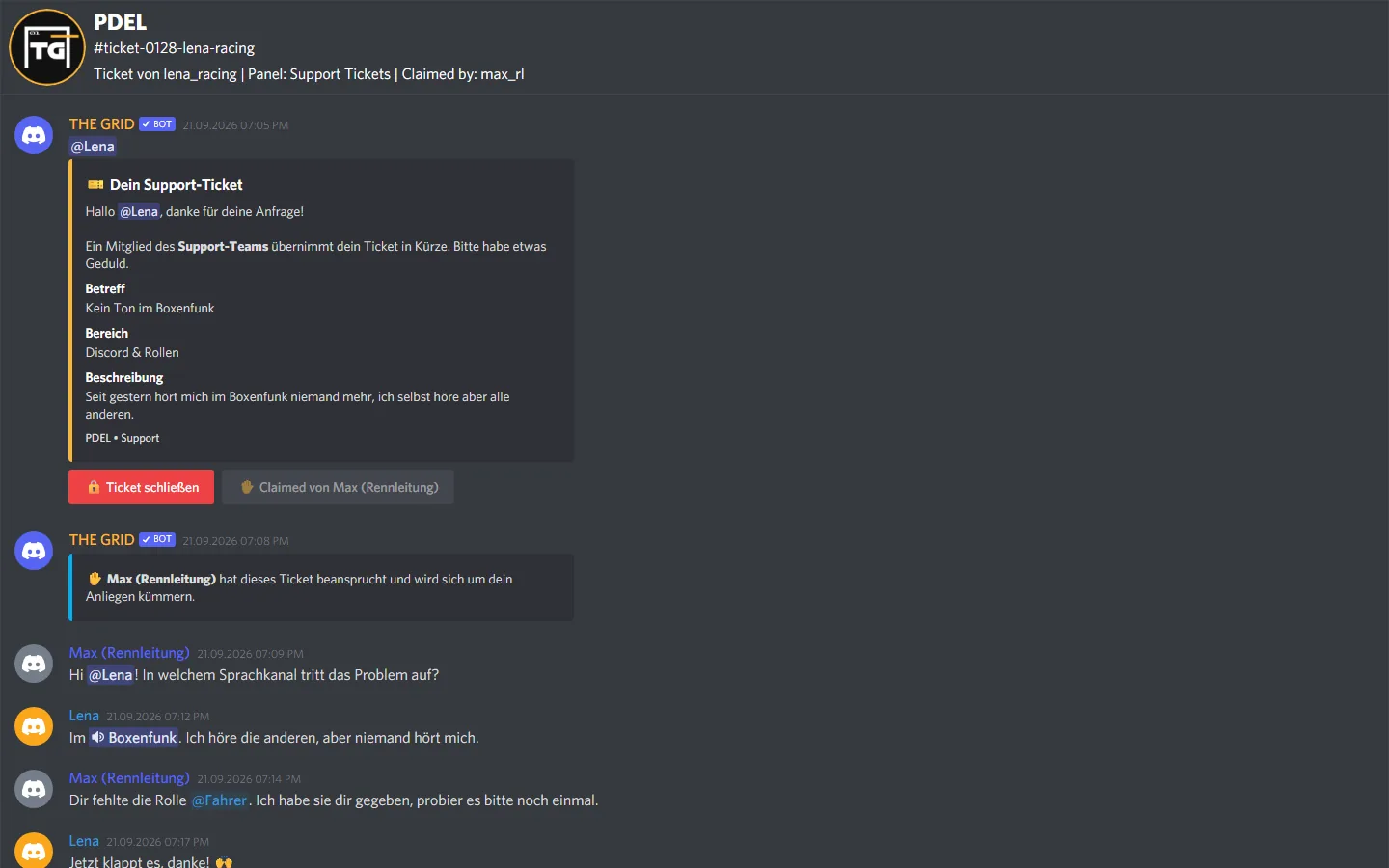
Kanalthema nicht von Hand ändern: Ersteller und Übernahme liest der Bot aus seiner Datenbank, die Buttons funktionieren also weiter. Namen in der Transcript-Liste – etwa unter „Claimed by“ – können aber aus dem Thema stammen und stimmen dann womöglich nicht mehr.
/ticket add: the same rights as the creator.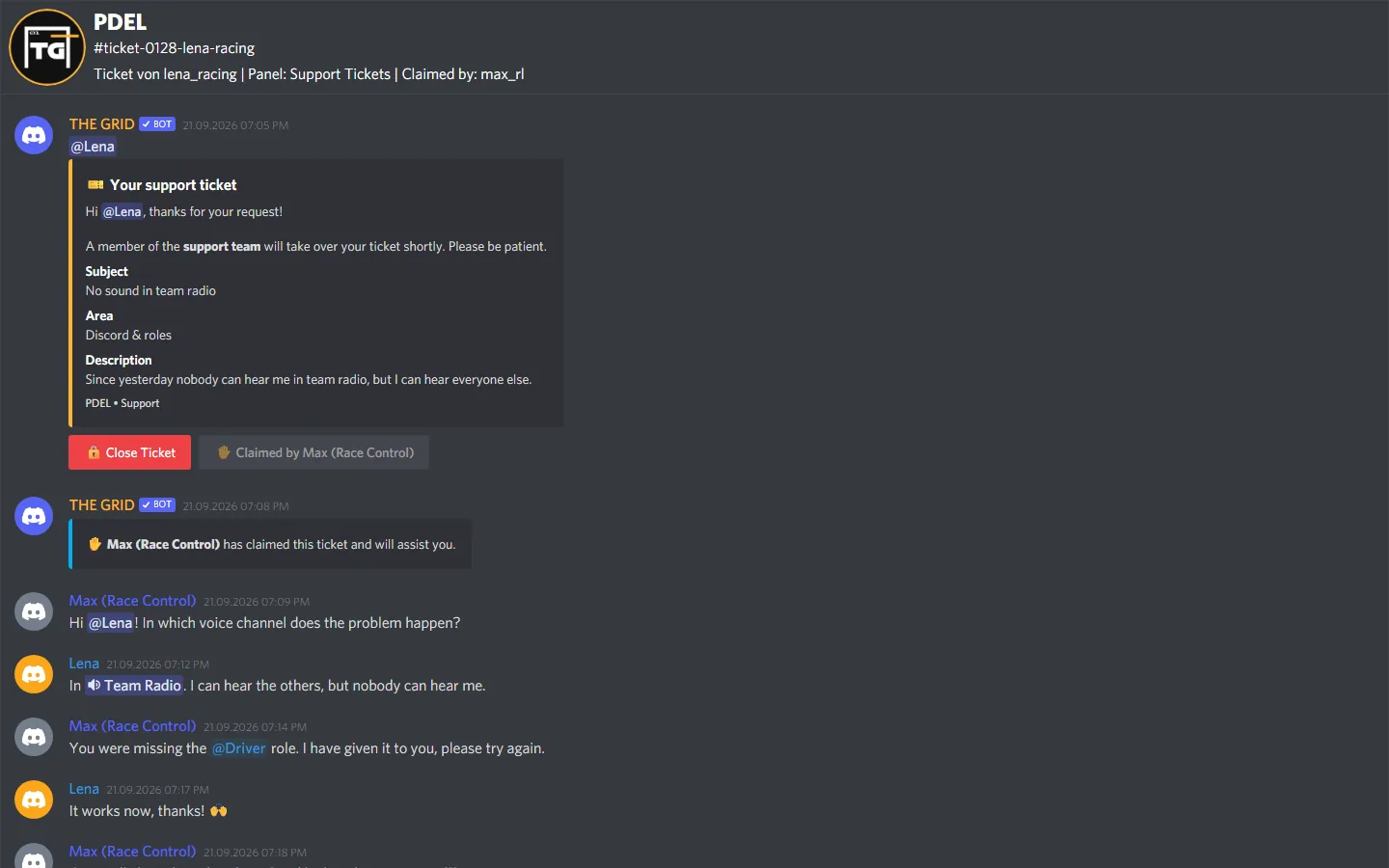
Do not change the channel topic by hand: the bot reads the creator and the claim from its database, so the buttons keep working. Names in the transcript list – such as under “Claimed by” – may come from the topic, though, and can then be wrong.
Mit „✋ Ticket beanspruchen“ zeigt ein Teammitglied, dass es sich um das Ticket kümmert. Das dürfen Mitglieder einer Support-Rolle mit dem Haken „Tickets claimen“.
With “✋ Claim Ticket” a team member shows that they are handling the ticket. Members of a support role with “Claim Tickets” ticked may do this.
„🔒 Ticket schließen“ dürfen Mitglieder einer Support-Rolle mit dem Haken „Tickets schließen“ – und der Ersteller, wenn „Creator kann Ticket schließen“ an ist.
ticket-0042-lena-racing_….html (23 Nachrichten)
🔒 Channel wird in 5 Sekunden gelöscht.../ticket delete.Ohne Transcript kein Löschen: Scheitert das Transcript, nimmt der Bot den Hinweis „🔒 … geschlossen“ wieder heraus. Das Ticket bleibt offen, der Kanal bleibt bestehen, und im Log-Kanal erscheint nichts. Eine Direktnachricht an den Ersteller gibt es beim Schließen nicht.
“🔒 Close Ticket” may be used by members of a support role with “Close Tickets” ticked – and by the creator if “Creator can close ticket” is on.
ticket-0042-lena-racing_….html (23 messages)
🔒 Channel will be deleted in 5 seconds.../ticket delete.No transcript, no deletion: if the transcript fails, the bot removes the “🔒 … closed” notice again. The ticket stays open, the channel stays, and nothing is posted to the log channel. The creator does not get a direct message when the ticket is closed.
Mit dem Befehl /ticket verwaltet dein Team ein offenes Ticket direkt im Ticket-Kanal. Jeder Unterbefehl braucht das passende Recht aus Rollen & Rechte.
| Befehl | Was passiert | Nötiges Recht |
|---|---|---|
/ticket add user:@Mitglied | Das Mitglied bekommt Zugang zum Kanal – mit denselben Rechten wie der Ersteller: lesen, schreiben, Verlauf sehen, Dateien anhängen und Links einbetten. | „Tickets verwalten“ |
/ticket remove user:@Mitglied | Nimmt einem Mitglied den einzeln vergebenen Zugang wieder weg. Den Ersteller kannst du nicht entfernen. Wer über eine Support-Rolle im Kanal ist, bleibt drin. | „Tickets verwalten“ |
/ticket transcript | Speichert ein Transcript des Kanals, so wie er gerade ist. Das Ticket bleibt offen. | „Transkripte erstellen“ |
/ticket delete | Löscht das Ticket nach einer Rückfrage ohne Transcript. | „Tickets löschen“ |
Tipp: Von Hand geht es weiterhin über die Kanal-Einstellungen in Discord: Rechtsklick auf den Ticket-Kanal → „Kanal bearbeiten“ → „Berechtigungen“. So gibst du zum Beispiel einer ganzen Rolle nachträglich Zugang.
/ticket transcript speichert den Verlauf bis jetzt. Der Kanal bleibt offen, das Gespräch geht weiter. Im Dashboard steht das Transcript in der Liste des Panels, hinter dem Kanalnamen mit „· Zwischenstand“ markiert. Beim Schließen entsteht wie immer ein eigenes Transcript – unabhängig vom Haken „Transkripte erstellen“.
ticket-0042-lena-racing_….html (17 Nachrichten). Du findest es im Dashboard unter „Transcripts“.Für Tickets, deren Verlauf niemand braucht – oder wenn das Transcript beim Schließen nicht klappt. Nach dem Befehl fragt der Bot nach:
With the /ticket command your team manages an open ticket right in the ticket channel. Each subcommand needs the matching permission from Roles & permissions.
| Command | What happens | Permission needed |
|---|---|---|
/ticket add user:@member | The member gets access to the channel – with the same rights as the creator: read, write, see the history, attach files and embed links. | “Manage Tickets” |
/ticket remove user:@member | Takes a member's individual access away again. The creator cannot be removed. Anyone who is in the channel through a support role stays in. | “Manage Tickets” |
/ticket transcript | Saves a transcript of the channel as it is right now. The ticket stays open. | “Create Transcripts” |
/ticket delete | Deletes the ticket without a transcript after a confirmation. | “Delete Tickets” |
Tip: you can still do it by hand in the channel settings in Discord: right-click the ticket channel → “Edit Channel” → “Permissions”. That way you can, for example, give a whole role access later on.
/ticket transcript saves the conversation so far. The channel stays open and the conversation goes on. In the dashboard the transcript appears in the panel's list, marked “· Zwischenstand” (interim state) after the channel name. Closing the ticket still creates a transcript of its own – regardless of the “Create Transcripts” tick.
ticket-0042-lena-racing_….html (17 messages). You can find it in the dashboard under “Transcripts”.For tickets whose conversation nobody needs – or when the transcript fails on closing. After the command the bot asks for confirmation:
Ist in Schritt 2 ein Log-Kanal gesetzt, meldet der Bot dort drei Ereignisse. Übernahmen, abgebrochene Schließversuche, gespeicherte Zwischenstände und von Hand gelöschte Kanäle erscheinen nicht.
| Meldung | Inhalt |
|---|---|
| 🎫 Neues Ticket (grün) | Erstellt von (Erwähnung und ID), Channel (Link), Panel, Ticket # (Nummer) |
| 🔒 Ticket geschlossen (rot) | Channel, Geschlossen von, Erstellt von, Nachrichten, Transcript (Dateiname), Claimed von (nur bei übernommenen Tickets) |
| 🗑️ Ticket gelöscht (ohne Transcript) (rot) | Channel, Gelöscht von, Erstellt von – nach /ticket delete |
Die Transcript-Datei selbst hängt der Bot nicht an. Du öffnest sie im Dashboard.
If a log channel is set in step 2, the bot reports three events there. Claims, cancelled close attempts, saved interim transcripts and channels deleted by hand do not appear.
| Message | Content |
|---|---|
| 🎫 New Ticket (green) | Created by (mention and ID), Channel (link), Panel, Ticket # (number) |
| 🔒 Ticket Closed (red) | Channel, Closed by, Created by, Messages, Transcript (file name), Claimed by (only for claimed tickets) |
| 🗑️ Ticket deleted (no transcript) (red) | Channel, Deleted by, Created by – after /ticket delete |
The bot does not attach the transcript file itself. You open it in the dashboard.
Damit ihr euch nicht auf Funktionen verlasst, die es nicht gibt:
So nobody relies on features that do not exist:
Die Texte des Bots – Bestätigungen, Buttons, Fehlermeldungen, Log-Einträge – richten sich nach der Hauptsprache deines Servers in Discord: Englisch, wenn dort Englisch eingestellt ist, sonst Deutsch. Du stellst sie in den Servereinstellungen unter Community → Übersicht ein. Diese Einstellung gibt es nur für Community-Server; bei allen anderen ist in Discord Englisch hinterlegt, dort antwortet der Bot also auf Englisch.
The bot's texts – confirmations, buttons, error messages, log entries – follow your server's primary language in Discord: English if English is set there, otherwise German. You find it under Server Settings → Community → Overview (“Server Primary Language”). This setting only exists for Community servers; all other servers have English set in Discord, so the bot answers in English there.
Tritt unserem Discord-Server bei – das Team hilft dir bei der Einrichtung gerne weiter.
Join our Discord server – the team is happy to help you with the setup.