
Sobald ein Twitch-Kanal live geht, postet THE GRID eine Meldung in deinen Discord-Kanal – mit Streamtitel, Spiel, Vorschaubild, einem Button zum Stream und auf Wunsch mit Rollen-Ping.
As soon as a Twitch channel goes live, THE GRID posts a notification in your Discord channel – with the stream title, game, preview image, a button to the stream and, if you like, a role ping.
Mit Twitch Live verbindest du Twitch-Kanäle mit deinem Discord-Server. Geht einer davon live, postet THE GRID automatisch eine Meldung in den Kanal, den du dafür gewählt hast – zum Beispiel #live-streams. So verpasst deine Community keinen Stream eurer Fahrer, Kommentatoren oder des Liga-Kanals.
Jeder verbundene Twitch-Kanal hat seinen eigenen Ziel-Kanal in Discord, seine eigene Nachricht und auf Wunsch eine Rolle, die gepingt wird. Die Nachricht baust du im Editor aus Bausteinen zusammen und siehst dabei eine Vorschau.
Twitch Live connects Twitch channels to your Discord server. When one of them goes live, THE GRID automatically posts a notification in the channel you picked for it – for example #live-streams. That way your community never misses a stream from your drivers, commentators or the league channel.
Every connected Twitch channel has its own target channel in Discord, its own message and, if you like, a role that gets pinged. You build the message from building blocks in the editor and see a preview while you work.
Wie viele Twitch-Kanäle du verbinden kannst, hängt vom Tarif deines Servers ab:
| Tarif | Twitch-Kanäle |
|---|---|
| Free | 0 – Funktion gesperrt |
| Lite | 1 |
| Premium | 2 |
| Plus | 5 |
| Lifetime | 10 |
| Lifetime+ | 10 |
Tipp: Die Preisseite führt Twitch Live derzeit nicht auf – maßgeblich sind die Zahlen in dieser Tabelle. Allgemeines zu den Tarifen steht in der Moderations-Übersicht.
How many Twitch channels you can connect depends on your server's plan:
| Plan | Twitch channels |
|---|---|
| Free | 0 – feature locked |
| Lite | 1 |
| Premium | 2 |
| Plus | 5 |
| Lifetime | 10 |
| Lifetime+ | 10 |
Tip: the pricing page does not list Twitch Live at the moment – the numbers in this table are what counts. General information on plans is in the moderation overview.
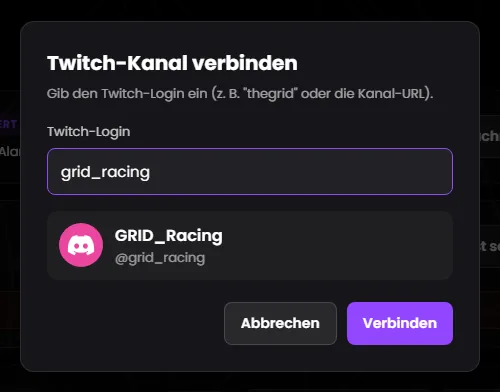
Du kannst jeden öffentlichen Twitch-Kanal verbinden, auch fremde. Eine Anmeldung bei Twitch brauchst du dafür nicht.
pdel_live. Groß- und Kleinschreibung spielt keine Rolle, ein vorangestelltes @ auch nicht.https://, also https://twitch.tv/pdel_live. Adressen ohne https:// („twitch.tv/…“ oder „www.twitch.tv/…“) und mobile Adressen mit m.twitch.tv werden nicht erkannt – dann erscheint „Ungültiger Twitch-Login.“.Ab drei Zeichen sucht THE GRID den Kanal bei Twitch, sobald du kurz mit dem Tippen aufhörst. Fehler stehen rot unter dem Feld. „Abbrechen“, die Esc-Taste oder ein Klick neben das Fenster schließen es.
Es erscheint „Kanal verbunden“, und der Kanal steht als neue Karte in der Übersicht. Ein neuer Eintrag
Als Nächstes öffnest du mit „Nachricht bearbeiten“ den Editor, wählst den Ziel-Kanal und passt die Nachricht an – siehe Nachricht gestalten.
Einmal pro Server: Auf einem Server kann jeder Twitch-Kanal nur einmal verbunden werden – also mit genau einem Ziel-Kanal. Derselbe Twitch-Kanal darf aber auf beliebig vielen anderen Servern eingetragen sein; jeder Server bekommt seine eigene Meldung.
| Meldung | Bedeutung |
|---|---|
| „Der Twitch-Kanal wurde nicht gefunden.“ | Tippfehler, oder den Kanal gibt es bei Twitch nicht. |
| „Ungültiger Twitch-Login.“ | Unzulässige Zeichen oder eine Adresse ohne https://. |
| „Dieser Kanal ist bereits verbunden.“ | Der Kanal steht schon in deiner Liste. „Verbinden“ bleibt gesperrt. |
| „Das Limit deines Tarifs ist erreicht.“ | Alle Plätze sind belegt – auch ausgeschaltete Einträge zählen. Siehe Tarife. |
| „Der Kanal konnte bei Twitch nicht abgefragt werden.“ / „Der Kanal konnte nicht verbunden werden.“ | Etwas ist schiefgelaufen. Versuche es später noch einmal. |
| „Die Twitch-Anbindung ist auf dem Server nicht konfiguriert.“ | Das liegt nicht an deinem Discord-Server, sondern bei THE GRID. Melde dich im Support-Discord. |
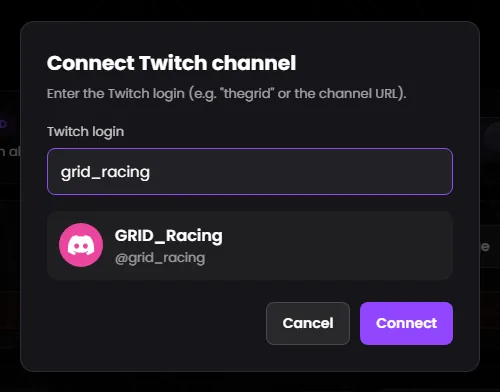
You can connect any public Twitch channel, including channels that are not yours. You do not need to log in to Twitch for this.
pdel_live. Upper and lower case do not matter, and neither does a leading @. The empty field shows the German hint „z. B. thegrid“ (e.g. thegrid).https://, i.e. https://twitch.tv/pdel_live. Addresses without https:// (“twitch.tv/…” or “www.twitch.tv/…”) and mobile addresses with m.twitch.tv are not recognised – you then see “Invalid Twitch login.”.From three characters on, THE GRID looks the channel up on Twitch as soon as you briefly stop typing. Errors appear in red below the field. “Cancel”, the Esc key or a click outside the window close it.
You see “Channel connected”, and the channel appears as a new card in the overview. A new entry
Next, open the editor with “Edit message”, choose the target channel and adapt the message – see Designing the message.
Once per server: on a server, each Twitch channel can only be connected once – so with exactly one target channel. The same Twitch channel may be added on any number of other servers, though; every server gets its own notification.
| Message | Meaning |
|---|---|
| “The Twitch channel could not be found.” | A typo, or the channel does not exist on Twitch. |
| “Invalid Twitch login.” | Characters that are not allowed, or an address without https://. |
| “This channel is already connected.” | The channel is already in your list. “Connect” stays locked. |
| “Your plan limit has been reached.” | All slots are taken – switched-off entries count too. See Plans. |
| “The channel could not be looked up on Twitch.” / “The channel could not be connected.” | Something went wrong. Try again later. |
| “The Twitch integration is not configured on the server.” | This is not caused by your Discord server but on THE GRID's side. Get in touch on the support Discord. |
Auf jeder Karte, die noch nicht verknüpft ist, steht der Knopf „Mit Twitch verknüpfen“ optional. Damit bestätigst du, dass dir der Twitch-Kanal gehört. An der Meldung ändert das nichts – Live-Meldungen funktionieren mit und ohne Verknüpfung genau gleich.
THE GRID speichert dabei nur, dass der Kanal verknüpft ist, mit welchem Discord-Konto und wann.
| Meldung | Bedeutung |
|---|---|
| „Der autorisierte Twitch-Account passt nicht zum verbundenen Kanal.“ | Du hast dich bei Twitch mit einem anderen Konto angemeldet. Melde dich bei Twitch ab und versuche es mit dem richtigen Konto. |
| „Die Twitch-Autorisierung wurde abgebrochen.“ | Du hast bei Twitch abgebrochen. Es wurde nichts geändert. |
Nicht wieder lösbar: Eine Verknüpfung lässt sich in der Oberfläche nicht aufheben. Sie bleibt bestehen, bis du den Kanal entfernst.
Every card that is not linked yet has the button “Link with Twitch” optional. It confirms that you own the Twitch channel. It does not change the notification – live notifications work exactly the same with or without a link.
THE GRID only stores that the channel is linked, with which Discord account and when.
| Message | Meaning |
|---|---|
| “The authorised Twitch account does not match the connected channel.” | You logged in to Twitch with a different account. Log out of Twitch and try again with the right account. |
| “The Twitch authorisation was cancelled.” | You cancelled on Twitch. Nothing was changed. |
Cannot be undone: a link cannot be removed in the interface. It stays until you remove the channel.
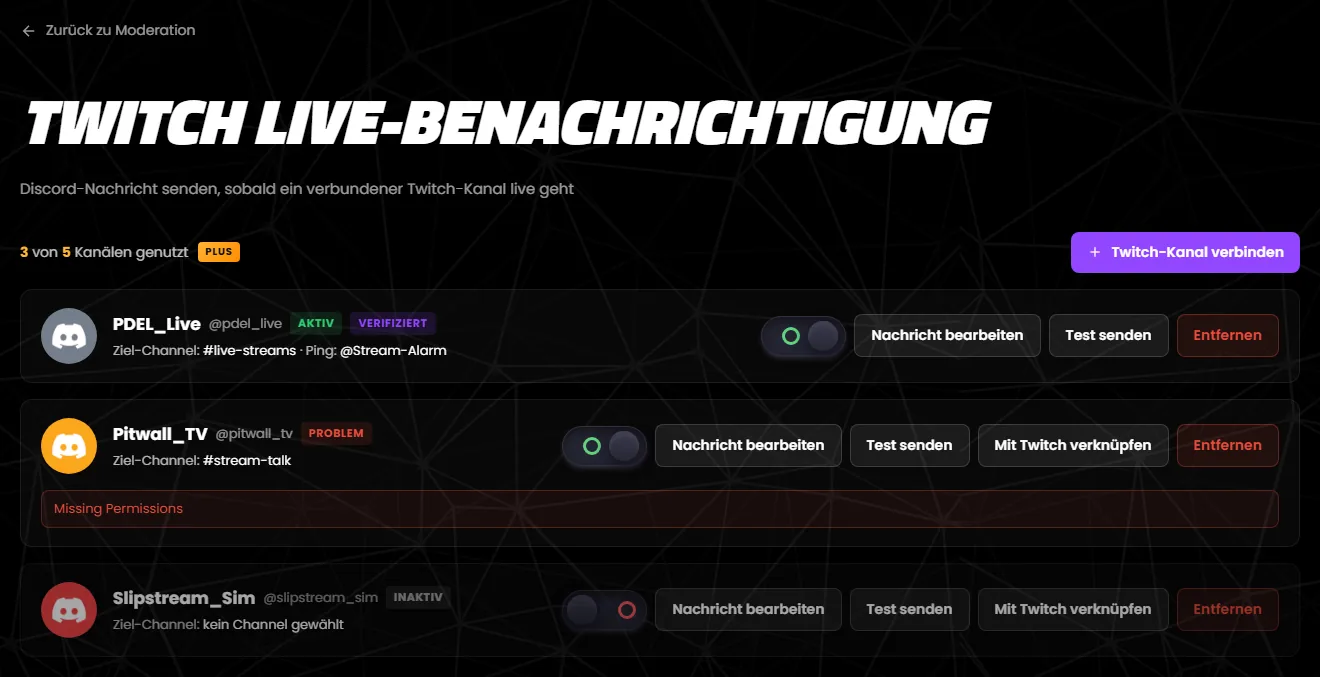
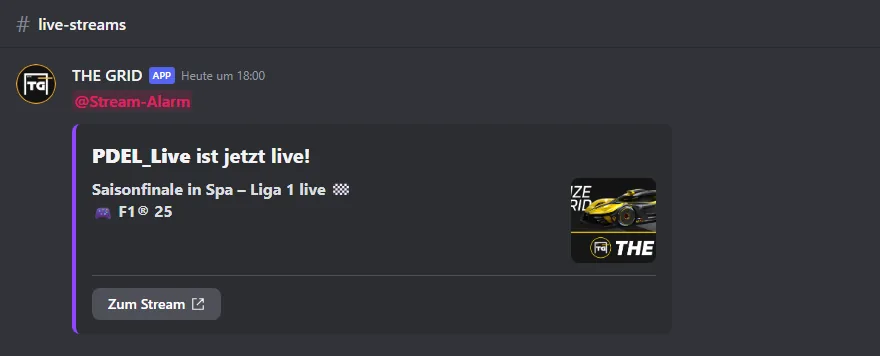
Jeder verbundene Kanal hat eine Karte – in der Reihenfolge, in der du die Kanäle verbunden hast. Sie zeigt Profilbild, Anzeigename, @Login und die Status-Abzeichen. Darunter steht der Ziel-Kanal, bei eingeschaltetem Ping auch die Rolle: „Ziel-Channel: #live-streams · Ping: @Stream-Alarm“. „kein Channel gewählt“ heißt, dass du im Editor noch einen Kanal wählen musst. Steht statt des Namens eine lange Zahl hinter dem #, wurde der Kanal in Discord gelöscht.
| Abzeichen | Bedeutung | Was tun? |
|---|---|---|
| AKTIV (grün) | Eingeschaltet, alles in Ordnung. | – |
| INAKTIV (grau) | Ausgeschaltet – es wird nichts gemeldet. | Einschalten, sobald Ziel-Kanal und Nachricht passen. |
| WIRD BESTÄTIGT (orange) | Eingeschaltet, aber Twitch hat die Anmeldung für die Live-Meldungen noch nicht bestätigt. Direkt nach dem Einschalten ist das normal. | Bleibt es stehen, lade die Seite neu. Hilft das nicht, schalte den Kanal aus und wieder ein. |
| TWITCH-ABO GESTÖRT (rot) | Twitch liefert für diesen Kanal derzeit keine Live-Meldungen. Eine Zusatzzeile auf der Karte erklärt das; THE GRID versucht es automatisch erneut. | Schalte den Kanal aus und wieder ein, um es sofort erneut zu versuchen. |
| PROBLEM (rot) | Eingeschaltet, aber etwas fehlt – siehe unten. | Ursache beheben. |
| VERIFIZIERT (lila) | Zusätzlich: Der Kanal ist mit Twitch verknüpft. | – |
Die Karte nennt die Ursache nicht. Es ist eine dieser:
Die genaue Ursache siehst du auf der Moderations-Seite, wenn du mit der Maus über das Abzeichen der Karte „Twitch Live-Benachrichtigung“ fährst – siehe Abzeichen. Nach dem Beheben kann es einen Moment dauern, bis das Abzeichen verschwindet.
Scheitert eine Live-Meldung, erscheint in Discord nichts. Stattdessen steht der Grund in einer roten Zeile auf der Karte – so, wie Discord ihn liefert, also auf Englisch. Der Kanal bleibt eingeschaltet, und bei jedem Streamstart wird es erneut versucht. Die Zeile bleibt stehen, bis die nächste echte Live-Meldung geklappt hat – auch wenn du den Fehler schon behoben hast. Eine Testnachricht entfernt sie nicht.
| Text | Bedeutet in der Regel | Abhilfe |
|---|---|---|
| Missing Access | Der Bot sieht den Ziel-Kanal nicht. | Dem Bot im Kanal „Kanal ansehen“ erlauben. |
| Missing Permissions | Dem Bot fehlt ein Recht, etwa „Nachrichten senden“ oder „Links einbetten“. | Berechtigungen des Kanals prüfen. |
| Unknown Channel | Der Ziel-Kanal wurde gelöscht. | Im Editor einen neuen Kanal wählen und speichern. |
| Invalid Form Body | Discord lehnt den Aufbau der Nachricht ab. | Nachricht prüfen, vor allem Sections – siehe Nachricht gestalten. |
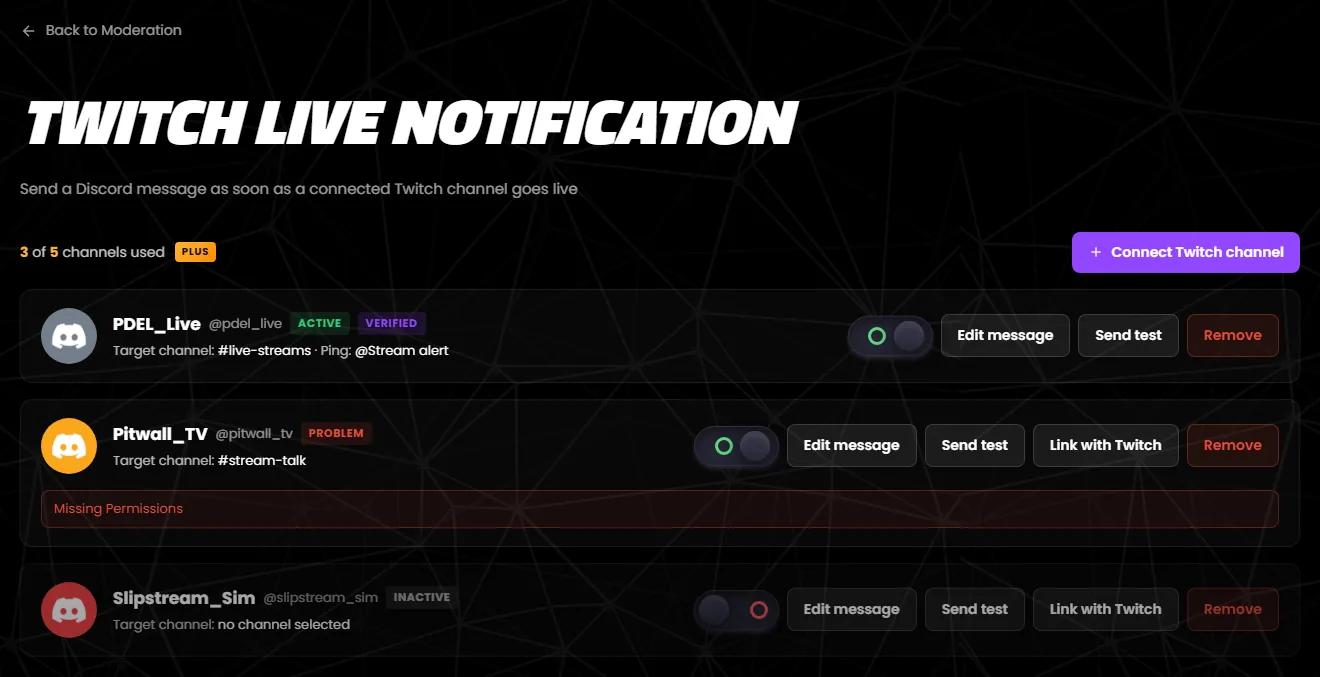
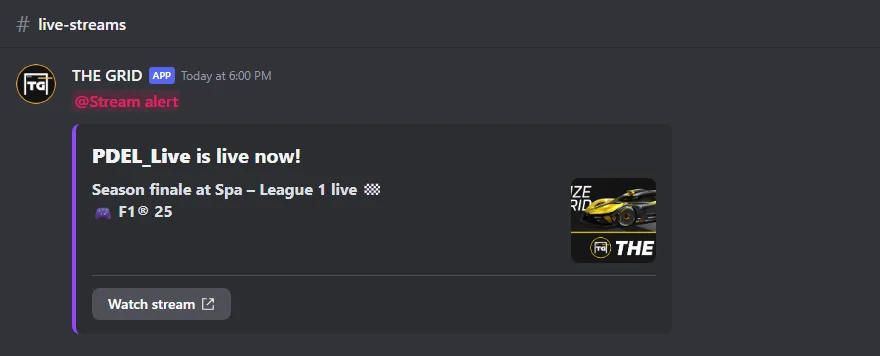
Every connected channel has a card – in the order in which you connected them. It shows the profile picture, display name, @login and the status badges. Below that is the target channel and, if the ping is on, the role: “Target channel: #live-streams · Ping: @Stream alert”. “no channel selected” means you still have to choose a channel in the editor. If a long number follows the # instead of a name, the channel has been deleted in Discord.
| Badge | Meaning | What to do |
|---|---|---|
| ACTIVE (green) | Switched on, everything is fine. | – |
| INACTIVE (grey) | Switched off – nothing is announced. | Switch it on once the target channel and message are ready. |
| BEING CONFIRMED (orange) | Switched on, but Twitch has not confirmed the sign-up for live events yet. This is normal right after switching on. | If it stays, reload the page. If that does not help, switch the channel off and on again. |
| TWITCH SUBSCRIPTION BROKEN (red) | Twitch is currently not delivering live events for this channel. An extra line on the card explains this; THE GRID retries automatically. | Switch the channel off and on again to retry right away. |
| PROBLEM (red) | Switched on, but something is missing – see below. | Fix the cause. |
| VERIFIED (purple) | In addition: the channel is linked with Twitch. | – |
The card does not say why. It is one of these:
You can see the exact cause on the moderation page by hovering over the badge of the “Twitch Live Notification” card – see Badges. That tooltip is currently German only. After fixing the cause, it can take a moment until the badge disappears.
If a live notification fails, nothing appears in Discord. Instead, the reason is shown in a red line on the card – exactly as Discord returns it, i.e. in English. The channel stays switched on, and every stream start tries again. The line stays until the next real live notification has worked – even if you have already fixed the problem. A test message does not clear it.
| Text | Usually means | Fix |
|---|---|---|
| Missing Access | The bot cannot see the target channel. | Allow “View Channel” for the bot in that channel. |
| Missing Permissions | The bot is missing a permission, such as “Send Messages” or “Embed Links”. | Check the channel's permissions. |
| Unknown Channel | The target channel has been deleted. | Choose a new channel in the editor and save. |
| Invalid Form Body | Discord rejects the structure of the message. | Check the message, especially sections – see Designing the message. |
Mit „Nachricht bearbeiten“ öffnest du den Twitch Nachrichten-Editor. Oben stehen die Einstellungen, links die Bausteine der Nachricht und darunter die verfügbaren Platzhalter, rechts die Vorschau.
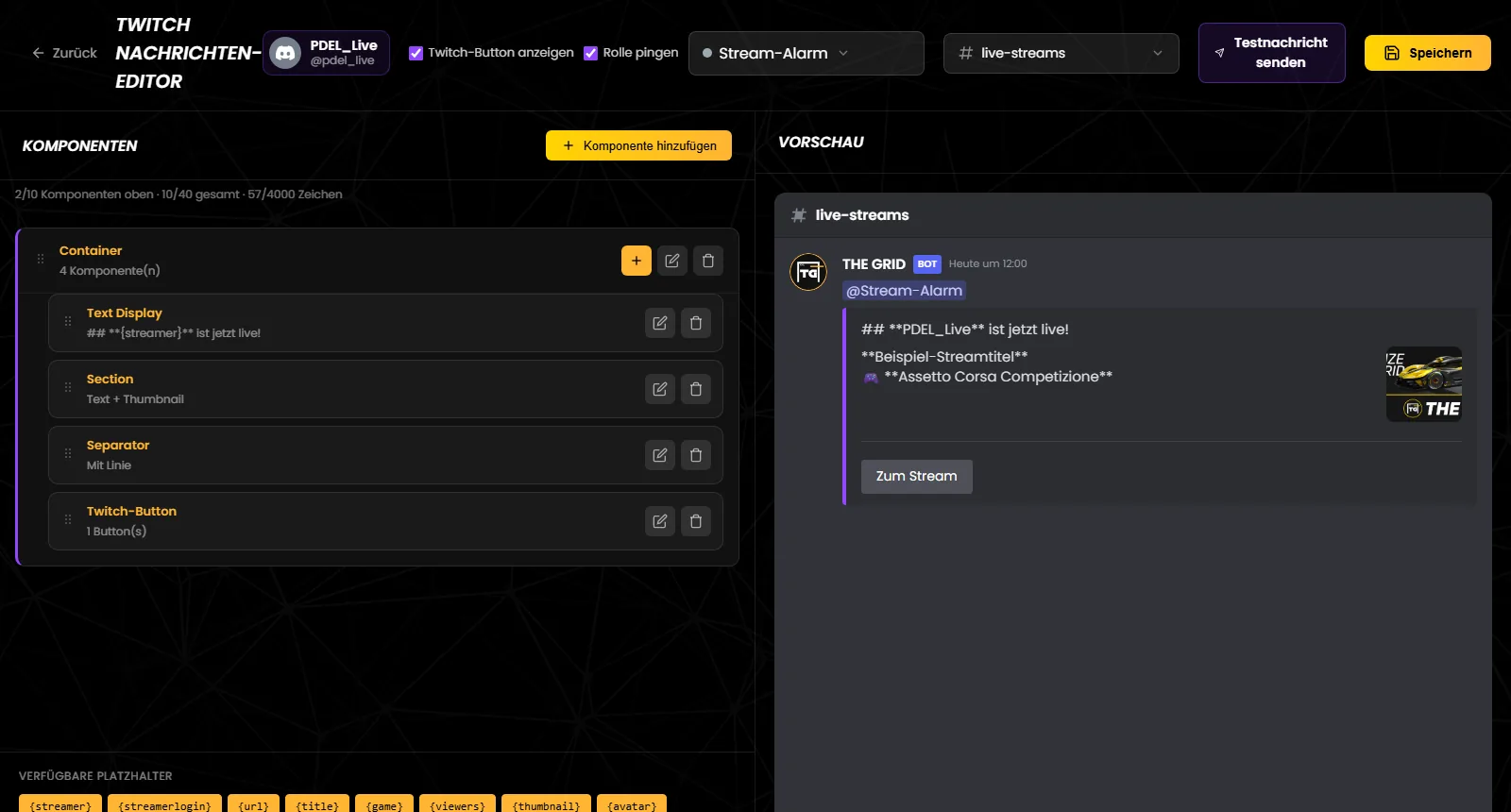
| Einstellung | Standard | Was sie bewirkt |
|---|---|---|
| Twitch-Kanal | – | Profilbild, Anzeigename und @Login des verbundenen Kanals – nur zur Anzeige. |
| „Twitch-Button anzeigen“ | an | Hängt unter der Nachricht automatisch einen Link-Button zum Stream an – aber nur, wenn die Nachricht keinen Baustein „Twitch-Button“ enthält. Platzhalter wirken in der Beschriftung dieses automatischen Buttons nicht. |
| „Rolle pingen“ | aus | Pingt beim Live-Gehen die gewählte Rolle. Die Erwähnung steht als eigene Zeile ganz oben – außer {pingrole} steht irgendwo in der Nachricht, dann erscheint sie genau dort. Ist keine Rolle gewählt, speichert der Editor den Haken stillschweigend als „aus“. |
| „Rolle wählen“ | – | Die Rolle für den Ping und für {pingrole}. Zur Auswahl stehen alle Rollen außer @everyone und den von Discord verwalteten Rollen (Bots, Server-Booster, Integrationen – also auch Abonnenten-Rollen aus der Twitch-Integration), die höchste zuerst. „Keine Rolle“ gibt es nicht; nimm stattdessen den Haken bei „Rolle pingen“ heraus. |
| „Kanal wählen“ | – | Der Ziel-Kanal der Meldung. Zur Auswahl stehen Text- und Ankündigungskanäle, sortiert nach ihrer Position in Discord und ohne Kategorien; Threads stehen nicht zur Auswahl. Ob der Bot dort schreiben darf, prüft der Editor nicht – das zeigt erst das Abzeichen in der Übersicht. |
| „Testnachricht senden“ | – | Schickt den gespeicherten Stand sofort in den Ziel-Kanal – siehe Testen. |
| „Speichern“ | – | Speichert Kanal, Ping, Bausteine und Button in einem Schritt. |
„Twitch-Button anzeigen“ wirkt nur ohne Baustein „Twitch-Button“. Die Standardvorlage enthält diesen Baustein – nimmst du den Haken heraus, wird der Button trotzdem gesendet. Willst du gar keinen Button, lösche den Baustein „Twitch-Button“ und nimm den Haken heraus.
Die Nachricht besteht aus Bausteinen (Discord „Components V2“) – ein klassisches Embed ist es nicht. Über „Komponente hinzufügen“ fügst du Bausteine hinzu. Ihre Namen stehen auch in der deutschen Oberfläche auf Englisch, nur „Twitch-Button“ ist deutsch.
| Baustein | Wofür | Neu hinzugefügt | Gut zu wissen |
|---|---|---|---|
| Text Display | Text mit Markdown und Platzhaltern („Text (Markdown unterstützt)“). | „**{streamer}** ist jetzt live!“, im Container „Neuer Text“ | Die Knöpfe im Fenster fügen Platzhalter an der Cursorposition ein. Der Zähler zeigt die Zeichen aller Texte zusammen. |
| Separator | Trennlinie oder nur Abstand („Trennlinie anzeigen“). | mit Linie | Der Abstand ist immer klein. Trennlinien am Anfang, am Ende oder doppelt lässt THE GRID beim Senden weg. |
| Section | Textzeilen mit einem kleinen Bild rechts: „Section Text (Markdown)“, „Textzeile hinzufügen“, „Thumbnail-URL (Platzhalter erlaubt)“ mit den Knöpfen {thumbnail} und {avatar}, „Thumbnail Beschreibung (Alt-Text)“. | Zeile „**{title}**“ und ein Discord-Standardbild | Braucht immer ein Bild und höchstens drei Zeilen – siehe Hinweis unten. Ersetze das Beispielbild durch {thumbnail} oder {avatar}. |
| Container | Rahmen mit farbigem Balken links („Akzentfarbe“) um andere Bausteine. | Farbe #FFB533 mit Text „**{streamer}** ist jetzt live!“ | Kein Container im Container. Ein leerer Container entfällt beim Senden. |
| Twitch-Button | Link-Button zum Kanal („Button-Beschriftung“, bis 80 Zeichen). | Beschriftung wie zuletzt eingestellt, sonst „Zum Stream“ | Genau einer pro Nachricht – ist er da, ist der Menüpunkt ausgegraut. Der „Button-Link“ zeigt immer auf den verbundenen Kanal. Eine leere Beschriftung wird zu „Zum Stream“. |
| Media Gallery | Bis zu 10 große Bilder („Bild URL“, „Beschreibung (Alt-Text)“, „Als Spoiler anzeigen“). | ein Discord-Standardbild | Nur https-Adressen, andere fallen beim Senden weg. Mit {thumbnail} zeigst du die Stream-Vorschau groß – die https-Warnung unter dem Feld erscheint dabei auch, das funktioniert trotzdem. |
„Als Spoiler anzeigen (verschwommen)“ beim Container derzeit ohne Wirkung – die Einstellung wird gespeichert, aber weder die Vorschau noch Discord verbergen den Inhalt. Bei Galerie-Bildern funktioniert „Als Spoiler anzeigen“.
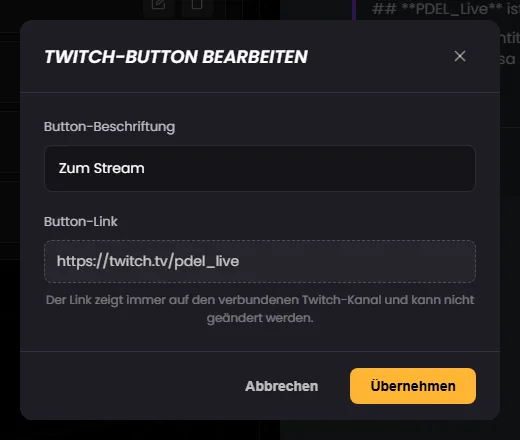
Section immer mit Bild: Discord verlangt für eine Section ein Bild und höchstens drei Textzeilen. Der Editor erlaubt mehr Zeilen, und ein leeres Feld „Thumbnail-URL“ entfernt das Bild – eine Adresse ohne https:// ebenso. Dann kann Discord die ganze Meldung ablehnen, und auf der Karte steht zum Beispiel „Invalid Form Body“. Nimm als Bild eine https-Adresse, {thumbnail} oder {avatar}, und prüfe das Ergebnis mit einer Testnachricht.
Die Vorschau ist eine Annäherung: Sie zeigt Beispielwerte statt echter Streamdaten und Formatierungszeichen wie ## und ** unformatiert. Zeilen, die beim Senden wegfallen, zeigt sie trotzdem, und {pingrole} zeigt die Rolle auch bei ausgeschaltetem Ping. Wie die Meldung wirklich aussieht, zeigt die Testnachricht.
Gut zu wissen: Ein Klick auf einen Platzhalter im Kasten „Verfügbare Platzhalter“ kopiert ihn in die Zwischenablage – ohne sichtbare Rückmeldung. Für die Standardvorlage gibt es keinen „Zurücksetzen“-Knopf; zurück bekommst du sie nur, indem du den Kanal entfernst und neu verbindest. Nachricht und Einstellungen sind dann weg.
Die Zeile über der Liste zeigt, wie viel Platz noch ist – etwa „2/10 Komponenten oben · 10/40 gesamt · 57/4000 Zeichen“. Die Grenzen stammen von Discord:
Wird eine Grenze überschritten, färbt sich die Zeile rot und ein Hinweis erscheint, etwa „Discord erlaubt höchstens … Komponenten auf oberster Ebene. Rollen-Ping und Twitch-Button zählen mit.“ Der Editor prüft die Grenzen schon beim Hinzufügen; beim Speichern und beim Einschalten prüft THE GRID sie noch einmal.
| Meldung | Was tun? |
|---|---|
| „Der gewählte Channel existiert nicht mehr.“ | Einen neuen Ziel-Kanal wählen. |
| „Bitte einen Text-Channel wählen.“ | Einen Text- oder Ankündigungskanal wählen. |
| „Die gewählte Rolle existiert nicht mehr.“ | Eine neue Rolle wählen oder „Rolle pingen“ ausschalten. |
| „Diese Rolle kann nicht gepingt werden.“ | Eine andere Rolle wählen. |
| „Die Nachricht ist zu groß. Bitte kürze den Inhalt.“ | Texte kürzen oder Bausteine entfernen. |
| „Die Nachricht hat ein ungültiges Format.“ | Die Bausteine prüfen und erneut speichern. |
| „Discord erlaubt höchstens 40 Komponenten insgesamt.“ | Bausteine entfernen. |
| „In einer Twitch-Benachrichtigung ist nur ein Button erlaubt.“ | Den zweiten Button entfernen. |
| „Höchstens 10 Bilder pro Galerie.“ | Bilder entfernen oder auf zwei Galerien verteilen. |
| „Fehler beim Speichern“ | Ein anderer Fehler, etwa eine abgelaufene Anmeldung. Seite neu laden und erneut versuchen. |
“Edit message” opens the Twitch Message Editor. The settings are at the top, the building blocks of the message on the left with the available placeholders below them, and the preview on the right.
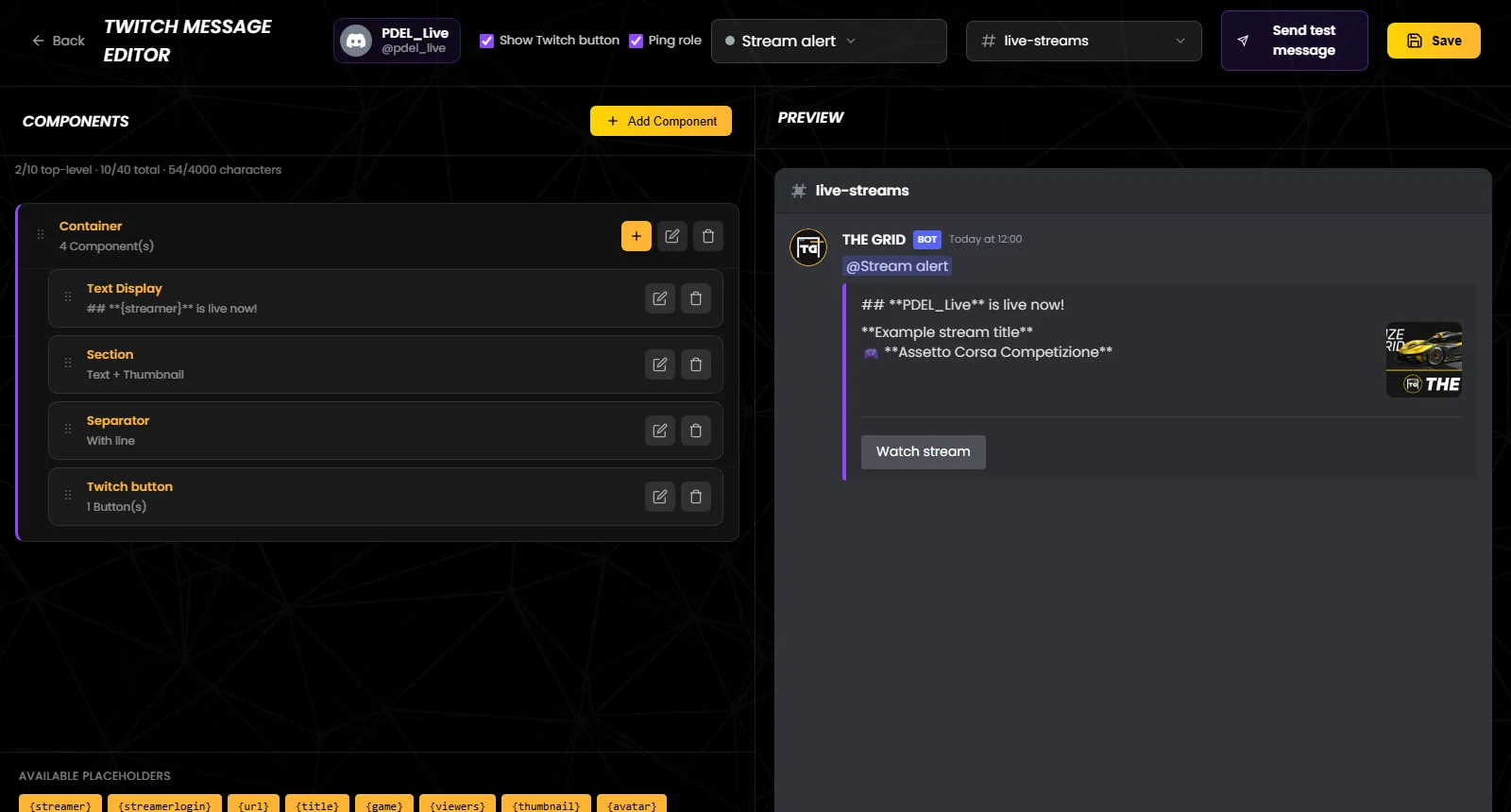
| Setting | Default | What it does |
|---|---|---|
| Twitch channel | – | Profile picture, display name and @login of the connected channel – display only. |
| “Show Twitch button” | on | Automatically adds a link button to the stream below the message – but only if the message contains no “Twitch button” block. Placeholders do not work in the label of this automatic button. |
| “Ping role” | off | Pings the selected role when the channel goes live. The mention is a separate line at the very top – unless {pingrole} appears anywhere in the message; then it appears exactly there. If no role is selected, the editor silently saves the tick as “off”. |
| “Select role” | – | The role for the ping and for {pingrole}. You can pick any role except @everyone and roles managed by Discord (bots, server boosters, integrations – including subscriber roles from the Twitch integration), highest first. There is no “no role” option; untick “Ping role” instead. |
| “Select channel” | – | The target channel of the notification. You can pick text and announcement channels, sorted by their position in Discord and without categories; threads are not offered. The editor does not check whether the bot may post there – only the badge in the overview shows that. |
| “Send test message” | – | Immediately sends the saved version to the target channel – see Testing. |
| “Save” | – | Saves channel, ping, blocks and button in one go. |
The tooltips of the two tick boxes are German only: „Twitch-Button unter der Nachricht anzeigen“ (show Twitch button below the message) and „Rolle beim Live-Gehen pingen“ (ping role when going live).
“Show Twitch button” only works without a “Twitch button” block. The default template contains this block – if you untick the box, the button is still sent. If you want no button at all, delete the “Twitch button” block and untick the box.
The message is made of building blocks (Discord “Components V2”) – it is not a classic embed. Add blocks with “Add Component”.
| Block | Used for | When added | Good to know |
|---|---|---|---|
| Text Display | Text with Markdown and placeholders (“Text (Markdown supported)”). | “**{streamer}** is live now!”, inside a container “New text” | The buttons in the window insert placeholders at the cursor position. The counter shows the characters of all texts combined. |
| Separator | A divider line or just spacing (“Show divider line”). | with line | The spacing is always small. THE GRID drops dividers at the start, at the end or doubled when sending. |
| Section | Text lines with a small image on the right: “Section Text (Markdown)”, “Add text line”, “Thumbnail URL (placeholders allowed)” with the buttons {thumbnail} and {avatar}, “Thumbnail Description (Alt-Text)”. | the line “**{title}**” and a Discord default image | Always needs an image and at most three lines – see the note below. Replace the sample image with {thumbnail} or {avatar}. |
| Container | A frame with a coloured bar on the left (“Accent Color”) around other blocks. | colour #FFB533 with the text “**{streamer}** is live now!” | No container inside a container. An empty container is dropped when sending. |
| Twitch button | A link button to the channel (“Button label”, up to 80 characters). | the label you set last, otherwise „Zum Stream“ (to the stream) | Exactly one per message – once it exists, the menu item is greyed out. The “Button link” always points to the connected channel. An empty label becomes „Zum Stream“, even in the English dashboard, although the empty field shows “Watch stream”. |
| Media Gallery | Up to 10 large images (“Image URL”, “Description (Alt-Text)”, “Show as spoiler”). | one Discord default image | https addresses only; anything else is dropped when sending. Use {thumbnail} to show the stream preview in large – the https warning below the field appears then as well, but it works. |
“Show as spoiler (blurred)” on a container currently has no effect – the setting is saved, but neither the preview nor Discord hides the content. For gallery images, “Show as spoiler” works.
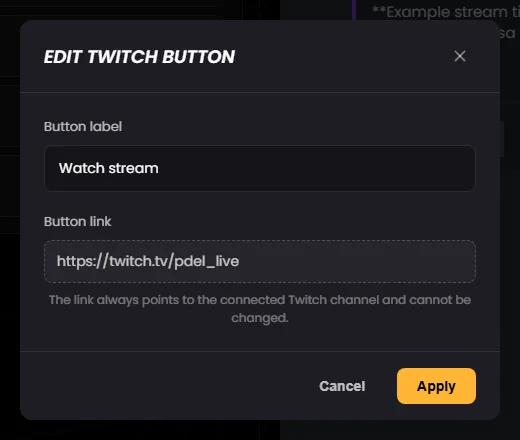
Always give a section an image: Discord requires an image and at most three text lines for a section. The editor allows more lines, and an empty “Thumbnail URL” field removes the image – so does an address without https://. Discord may then reject the whole notification, and the card shows, for example, “Invalid Form Body”. Use an https address, {thumbnail} or {avatar} as the image and check the result with a test message. The empty URL field shows the German hint „https://... oder {thumbnail}“ (… or {thumbnail}).
The preview is an approximation: it shows example values instead of real stream data and formatting characters such as ## and ** unformatted. It still shows lines that are dropped when sending, and {pingrole} shows the role even when the ping is off. The test message shows what the notification really looks like.
Good to know: clicking a placeholder in the “Available Placeholders” box copies it to the clipboard – without any visible feedback. There is no “reset” button for the default template; the only way to get it back is to remove the channel and connect it again. The message and settings are lost then.
The line above the list shows how much room is left – for example “2/10 top-level · 10/40 total · 54/4000 characters”. The limits come from Discord:
If a limit is exceeded, the line turns red and a hint appears, for example “Discord allows at most … top-level components. The role ping and the Twitch button count towards this.” The editor checks the limits when you add blocks; THE GRID checks them again when you save and when you switch the channel on.
| Message | What to do |
|---|---|
| “The selected channel no longer exists.” | Choose a new target channel. |
| “Please select a text channel.” | Choose a text or announcement channel. |
| “The selected role no longer exists.” | Choose a new role or switch off “Ping role”. |
| “This role cannot be pinged.” | Choose a different role. |
| “The message is too large. Please shorten the content.” | Shorten texts or remove blocks. |
| “The message has an invalid format.” | Check the blocks and save again. |
| “Discord allows at most 40 components in total.” | Remove blocks. |
| “A Twitch notification may contain only one button.” | Remove the second button. |
| “At most 10 images per gallery.” | Remove images or split them across two galleries. |
| “Error while saving” | Another error, for example an expired login. Reload the page and try again. |
Platzhalter ersetzt THE GRID beim Senden durch die aktuellen Streamdaten. Sie wirken in Text Display, in Section-Zeilen, in Thumbnail-URL und Alt-Text, in Bild-Adresse und Alt-Text einer Galerie sowie in der Beschriftung des Bausteins „Twitch-Button“. In der Beschriftung des automatisch angehängten Buttons bleiben sie wörtlich stehen.
Schreibe sie genau wie unten – mit geschweiften Klammern und derselben Groß- und Kleinschreibung. {StartedAt} oder unbekannte Platzhalter wie {foo} bleiben wörtlich in der Meldung stehen. Im Bearbeiten-Fenster fügen die Platzhalter-Knöpfe sie an der Cursorposition ein.
| Platzhalter | Wird zu | Beispiel |
|---|---|---|
{streamer} | Anzeigename des Kanals – so, wie er beim Verbinden hieß | PDEL_Live |
{streamerlogin} | Twitch-Login, kleingeschrieben | pdel_live |
{url} | Adresse des Kanals | https://twitch.tv/pdel_live |
{title} | Titel des Streams | Saisonfinale in Spa – Liga 1 live 🏁 |
{game} | Kategorie bzw. Spiel des Streams | F1® 25 |
{viewers} | Zuschauerzahl beim Abruf rund 30 Sekunden nach dem Start – meist noch niedrig | 42 |
{thumbnail} | Vorschaubild des Streams (1280 × 720 Pixel) – für Bild-Felder | – |
{avatar} | Aktuelles Profilbild des Kanals – für Bild-Felder | – |
{startedAt} | Startzeit als Discord-Zeitangabe, die sich von selbst aktualisiert. Jeder Leser sieht sie in seiner Discord-Sprache. | „vor 2 Minuten“ |
{server} | Name deines Servers | PDEL |
{pingrole} | Erwähnung der Ping-Rolle – nur wenn „Rolle pingen“ an ist, sonst leer. Steht er in der Nachricht, entfällt die Ping-Zeile ganz oben. | @Stream-Alarm |
Liefert Twitch auch nach mehreren Versuchen keine Streamdaten, postet THE GRID die Meldung trotzdem – mit Ersatzwerten:
{title} wird zu „PDEL_Live ist live“ – immer auf Deutsch.{game} bleibt leer, {viewers} wird 0.{thumbnail} zeigt das Profilbild.{startedAt} nimmt die Startzeit, die Twitch gemeldet hat.Enthält eine Zeile Platzhalter und bleibt nach dem Ersetzen nur Deko übrig – Markdown-Zeichen wie ** oder #, Leerzeichen, Emojis oder Ziffern –, lässt THE GRID die Zeile weg. So verschwindet „🎮 **{game}**“, wenn kein Spiel gesetzt ist, und ein allein stehendes {pingrole} bei ausgeschaltetem Ping. „Spielt: {game}“ bleibt dagegen als „Spielt: “ stehen. Eine Section ohne verbleibende Zeile und ein leerer Container entfallen ebenfalls.
Bekannter Fehler: Weil Ziffern als Deko zählen, verschwindet eine Zeile, die außer {viewers} nur Emojis oder Formatierung enthält, immer – auch bei 42 Zuschauern. „{viewers}“, „👀 {viewers}“ und „👀 **{viewers}**“ erscheinen also nie. Umgehung: Schreibe ein Wort dazu, etwa „👀 {viewers} Zuschauer“.
Der Editor zeigt statt echter Daten Beispielwerte: „Beispiel-Streamtitel“, „Assetto Corsa Competizione“, 128 Zuschauer, „gerade eben“, „Mein Server“ und als Vorschaubild ein THE-GRID-Banner. Ob eine Zeile beim Senden wegfällt, siehst du dort nicht.
THE GRID replaces placeholders with the current stream data when sending. They work in Text Display, in section lines, in the thumbnail URL and alt text, in the image address and alt text of a gallery and in the label of the “Twitch button” block. In the label of the automatically added button they stay as typed.
Type them exactly as below – with curly brackets and the same upper and lower case. {StartedAt} or unknown placeholders such as {foo} stay in the notification as typed. In the edit window, the placeholder buttons insert them at the cursor position.
| Placeholder | Becomes | Example |
|---|---|---|
{streamer} | Display name of the channel – as it was when you connected it | PDEL_Live |
{streamerlogin} | Twitch login, lower case | pdel_live |
{url} | Address of the channel | https://twitch.tv/pdel_live |
{title} | Title of the stream | Season finale at Spa – League 1 live 🏁 |
{game} | Category or game of the stream | F1® 25 |
{viewers} | Viewer count when the data is fetched, about 30 seconds after the start – usually still low | 42 |
{thumbnail} | Preview image of the stream (1280 × 720 pixels) – for image fields | – |
{avatar} | Current profile picture of the channel – for image fields | – |
{startedAt} | Start time as a Discord timestamp that updates itself. Every reader sees it in their Discord language. | “2 minutes ago” |
{server} | Name of your server | PDEL |
{pingrole} | Mention of the ping role – only if “Ping role” is on, otherwise empty. If it is in the message, the ping line at the very top is left out. | @Stream alert |
If Twitch still returns no stream data after several attempts, THE GRID posts the notification anyway – with fallback values:
{title} becomes „PDEL_Live ist live“ (is live) – always in German.{game} stays empty, {viewers} becomes 0.{thumbnail} shows the profile picture.{startedAt} uses the start time reported by Twitch.If a line contains placeholders and nothing but decoration is left after replacing them – Markdown characters such as ** or #, spaces, emojis or digits – THE GRID leaves the line out. That way “🎮 **{game}**” disappears when no game is set, and so does a {pingrole} on its own line when the ping is off. “Playing: {game}”, on the other hand, stays as “Playing: ”. A section without any remaining line and an empty container are dropped as well.
Known bug: because digits count as decoration, a line that contains nothing but {viewers} plus emojis or formatting always disappears – even with 42 viewers. “{viewers}”, “👀 {viewers}” and “👀 **{viewers}**” therefore never appear. Workaround: add a word, for example “👀 {viewers} viewers”.
Instead of real data, the editor shows example values: “Example stream title”, “Assetto Corsa Competizione”, 128 viewers, “just now”, “My Server” and a THE GRID banner as the preview image. You cannot see there whether a line will be dropped when sending.
Die Meldung kommt also etwa 30 Sekunden nach dem Streamstart, selten erst nach rund 50 Sekunden.
{pingrole} in der Nachricht steht), deine Bausteine und zuletzt der automatische Button (wenn „Twitch-Button anzeigen“ an ist und es keinen Baustein „Twitch-Button“ gibt).{thumbnail}.{streamer}, {streamerlogin}, {url} und der Button-Link weiter den alten Namen bzw. die alte Adresse – nur das Profilbild ist aktuell. Abhilfe: Kanal entfernen und neu verbinden; die Nachricht gestaltest du dann neu.{startedAt} zeigt Discord jedem Leser in seiner eigenen Sprache.So the notification arrives about 30 seconds after the stream starts, occasionally only after around 50 seconds.
{pingrole} in the message), your blocks and finally the automatic button (if “Show Twitch button” is on and there is no “Twitch button” block).{thumbnail}.{streamer}, {streamerlogin}, {url} and the button link keep showing the old name or address – only the profile picture is current. Fix: remove the channel and connect it again; you then design the message anew.{startedAt} is shown by Discord to every reader in their own language.„Test senden“ in der Übersicht und „Testnachricht senden“ im Editor schicken sofort eine Meldung in den gespeicherten Ziel-Kanal – ohne die 30 Sekunden Wartezeit und auch dann, wenn der Kanal ausgeschaltet ist.
Der Test pingt wirklich: Ist „Rolle pingen“ an, benachrichtigt auch die Testnachricht alle Mitglieder der Rolle. Willst du niemanden stören, nimm den Haken für den Test heraus und speichere.
Ein- und ausgeschaltet wird nur mit dem Schalter auf der Karte in der Übersicht. Beim Einschalten prüft THE GRID:
Klappt alles, erscheint „Kanal aktiviert“. Direkt danach kann das Abzeichen noch „WIRD BESTÄTIGT“ zeigen; sobald Twitch die Anmeldung bestätigt hat, steht dort „AKTIV“. Ob der Bot im Ziel-Kanal schreiben darf, siehst du erst am Abzeichen: Fehlen ihm Rechte, steht dort „PROBLEM“. Wirf nach dem Einschalten also einen Blick auf die Karte.
„Entfernen“ fragt: „Diesen Twitch-Kanal wirklich entfernen? Die Nachricht geht dabei verloren.“ Nach dem Bestätigen sind Eintrag, Nachricht, Einstellungen und eine Verknüpfung mit Twitch weg („Kanal entfernt“), und in deinem Tarif ist wieder ein Platz frei. Bereits gepostete Meldungen bleiben in Discord stehen. Scheitert es, erscheint „Der Kanal konnte nicht entfernt werden.“
“Send test” in the overview and “Send test message” in the editor immediately send a notification to the saved target channel – without the 30-second wait and even if the channel is switched off.
The test really pings: if “Ping role” is on, the test message notifies every member of the role as well. If you do not want to disturb anyone, untick the box for the test and save.
Channels are only switched on and off with the switch on the card in the overview. When you switch one on, THE GRID checks:
If everything is fine, you see “Channel enabled”. Right afterwards the badge may still show “BEING CONFIRMED”; once Twitch has confirmed the sign-up, it says “ACTIVE”. Whether the bot may post in the target channel only shows in the badge: if it is missing permissions, it says “PROBLEM”. So take a look at the card after switching on.
“Remove” asks: “Really remove this Twitch channel? The configured message will be lost.” Once you confirm, the entry, message, settings and any link with Twitch are gone (“Channel removed”), and a slot in your plan is free again. Notifications that have already been posted stay in Discord. If it fails, you see “The channel could not be removed.”
Damit du nicht unnötig suchst – Stand heute gilt:
{viewers} fallen immer weg – siehe Platzhalter.To save you some searching – this is the current state:
{viewers} are always dropped – see Placeholders.Tritt unserem Discord-Server bei – das Team hilft dir bei der Einrichtung gerne weiter.
Join our Discord server – the team is happy to help you with the setup.