
Lege fest, welche Stewards welche Fälle sehen, wer beim Öffnen gepingt wird und wer RCs schließen oder übernehmen darf.
Decide which stewards see which cases, who gets pinged when an RC is opened and who may close or claim RCs.
/rc – Mitglieder hinzufügen und entfernen, Transcript speichern, ohne Transcript löschen – gibt es eigene Haken. Auch sie sind bei neuen Rollen aus./rc commands – adding and removing members, saving a transcript, deleting without a transcript – have ticks of their own. They are off for new roles, too.Die Rennleitungs-Rollen trägst du in Schritt 5 des Panel-Editors ein („Roles Handler“, Bereich „Rollen mit Zugriff“).
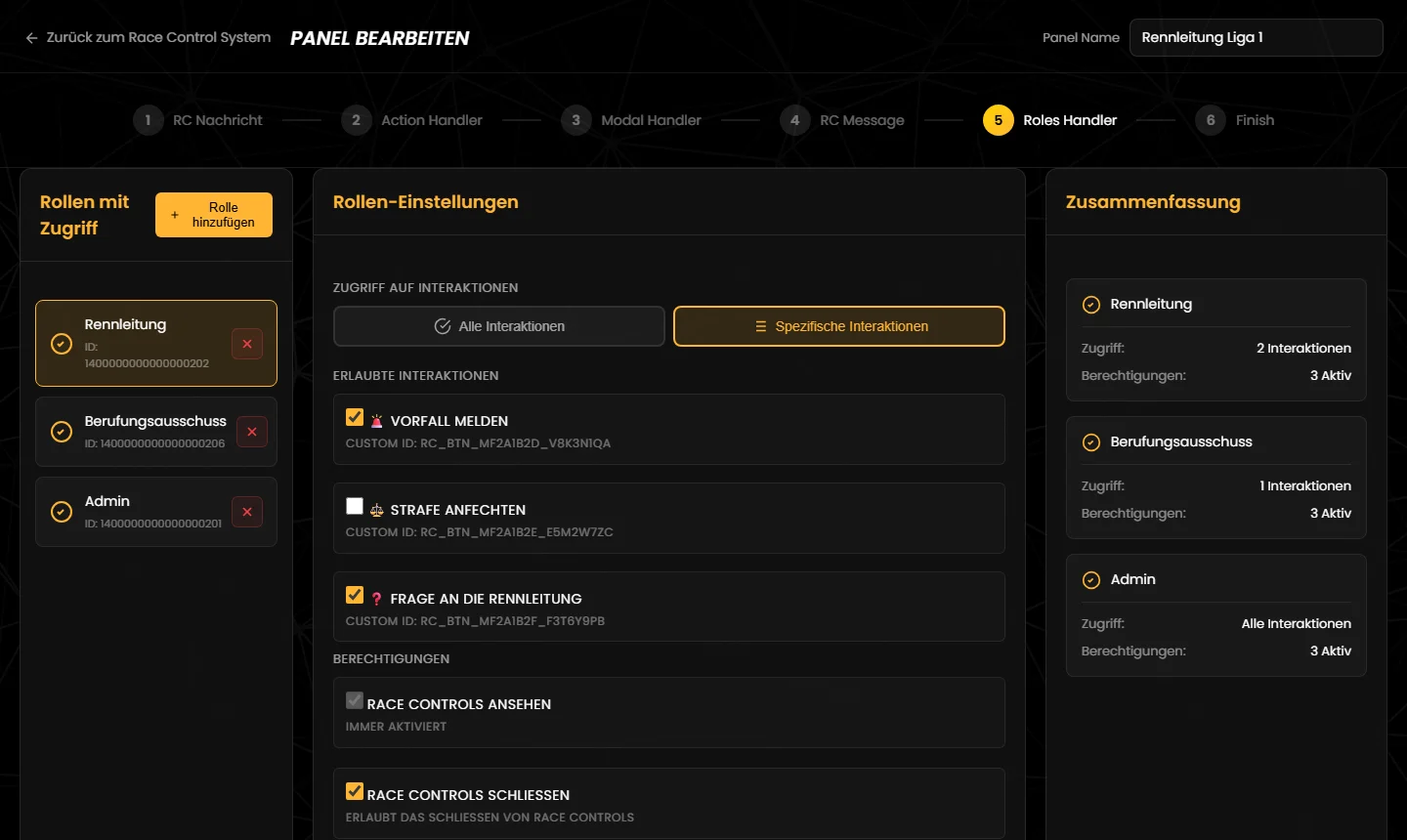
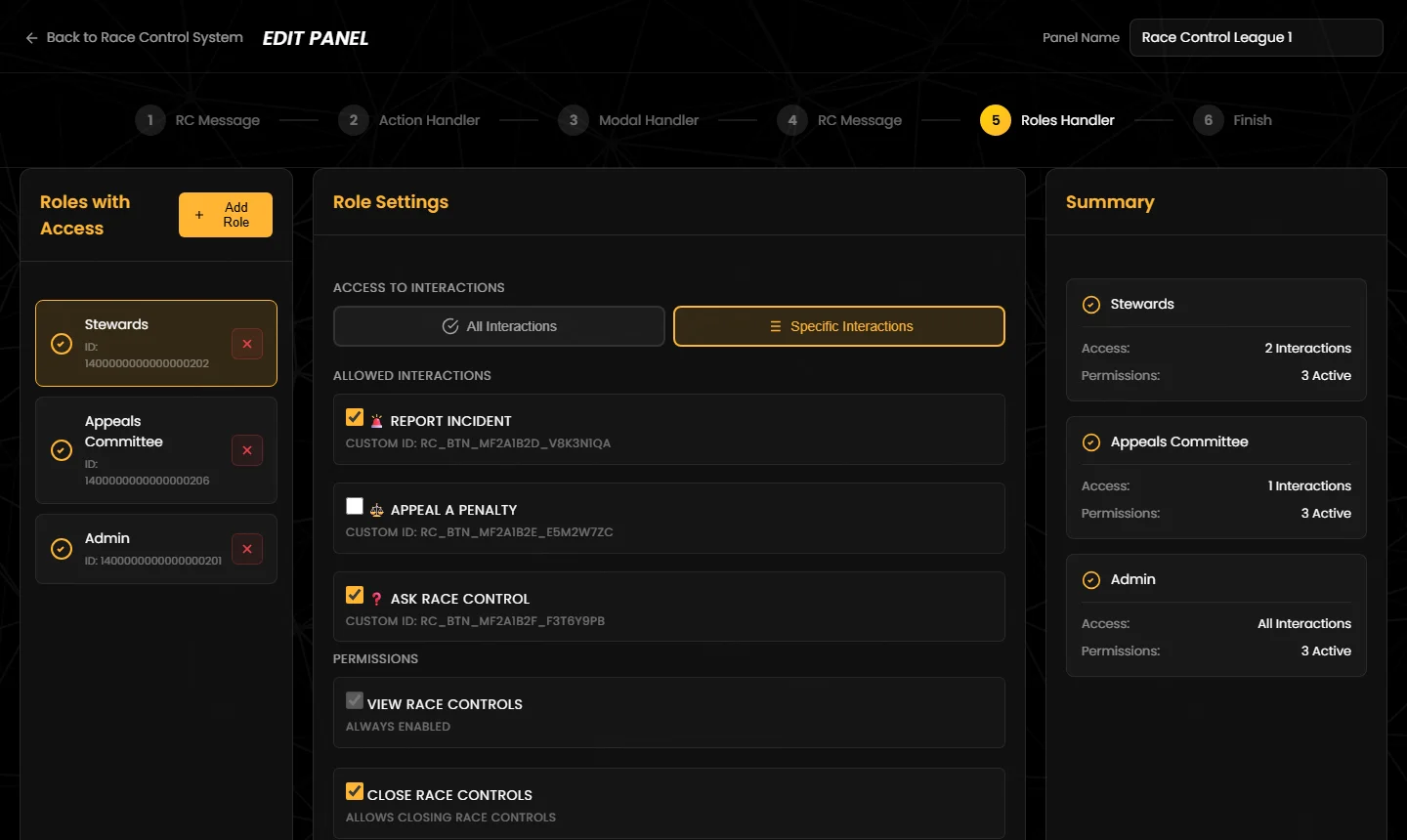
You add the steward roles in step 5 of the panel editor (“Roles Handler”, area “Roles with Access”).
Hier legst du fest, für welche Fälle eine Rolle zuständig ist:
Das gilt für alles, was die Rolle betrifft: Nur zuständige Rollen bekommen Zugang zum Kanal, werden beim Öffnen erwähnt und können das RC schließen, übernehmen oder die Befehle /rc nutzen.
Gut zu wissen: Wechselst du zurück auf „Alle Interaktionen“, verwirft der Editor die Auswahl. Hat eine Rolle mit „Spezifische Interaktionen“ keine Interaktion mehr – etwa weil die Buttons gelöscht wurden –, bekommt sie für neue RCs keinen Zugang.
This decides which cases a role is responsible for:
This applies to everything that concerns the role: only responsible roles get access to the channel, are mentioned when the RC is opened and can close or claim it or use the /rc commands.
Good to know: if you switch back to “All Interactions”, the editor discards the selection. If a role with “Specific Interactions” has no interaction left – for example because the buttons were deleted – it gets no access to new RCs.
| Berechtigung | Standard | Wirkung |
|---|---|---|
| Race Controls ansehen | immer an | Die Rolle bekommt Zugang zu den RC-Kanälen: lesen, schreiben, Verlauf sehen, Dateien anhängen, Links einbetten und Nachrichten verwalten (etwa fremde Nachrichten löschen). Das Häkchen lässt sich nicht abwählen. |
| Race Controls schließen | aus | Darf „🔒 RC schließen“ benutzen. |
| Race Controls claimen | aus | Darf „✋ RC beanspruchen“ benutzen. |
| Race Controls löschen | aus | Darf /rc delete benutzen: das RC nach einer Rückfrage ohne Transcript löschen. |
| Race Controls verwalten | aus | Darf /rc add und /rc remove benutzen: Mitglieder zum RC hinzufügen oder wieder entfernen – zusätzlich zu den Beteiligten aus dem Formular. |
| Transkripte erstellen | aus | Darf /rc transcript benutzen: ein Transcript speichern, ohne das RC zu schließen. Beim Schließen entsteht das Transcript immer automatisch, unabhängig von diesem Haken. |
Die Befehle funktionieren nur im offenen RC-Kanal. Was sie genau tun, steht unter Ablauf in Discord – Befehle.
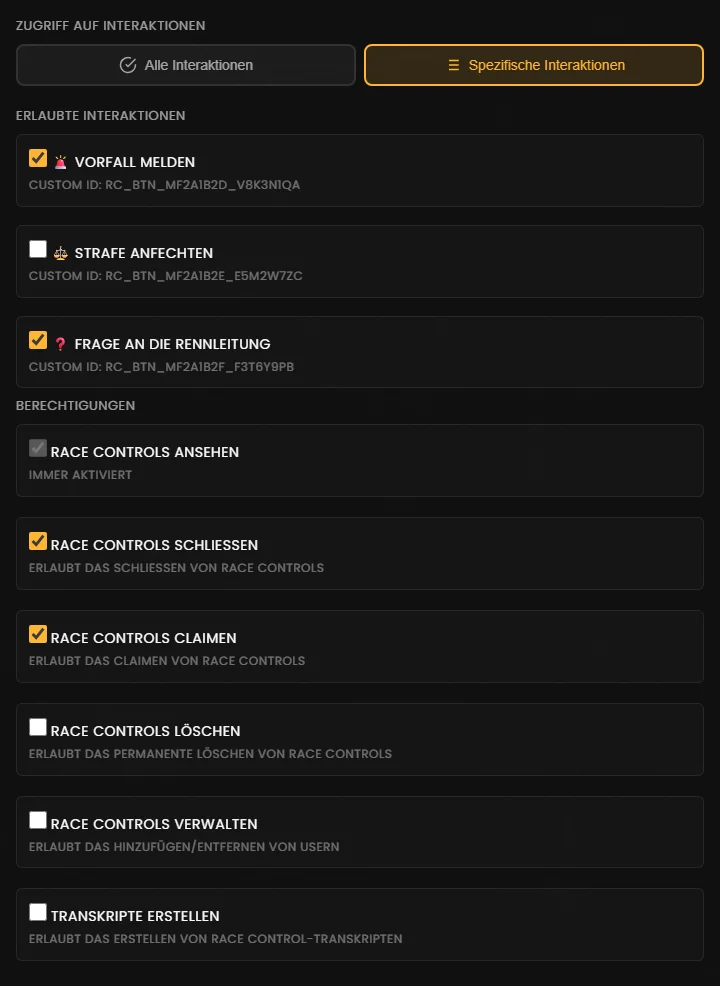
| Permission | Default | Effect |
|---|---|---|
| View Race Controls | always on | The role gets access to the RC channels: read, write, see the history, attach files, embed links and manage messages (for example delete other people's messages). This tick cannot be removed. |
| Close Race Controls | off | May use “🔒 Close RC”. |
| Claim Race Controls | off | May use “✋ Claim RC”. |
| Delete Race Controls | off | May use /rc delete: delete the RC without a transcript after a confirmation. |
| Manage Race Controls | off | May use /rc add and /rc remove: add members to the RC or remove them again – in addition to the drivers involved from the form. |
| Create Transcripts | off | May use /rc transcript: save a transcript without closing the RC. When an RC is closed, its transcript is always created automatically, regardless of this tick. |
The commands only work in an open RC channel. What exactly they do is explained under Race control in Discord – Commands.
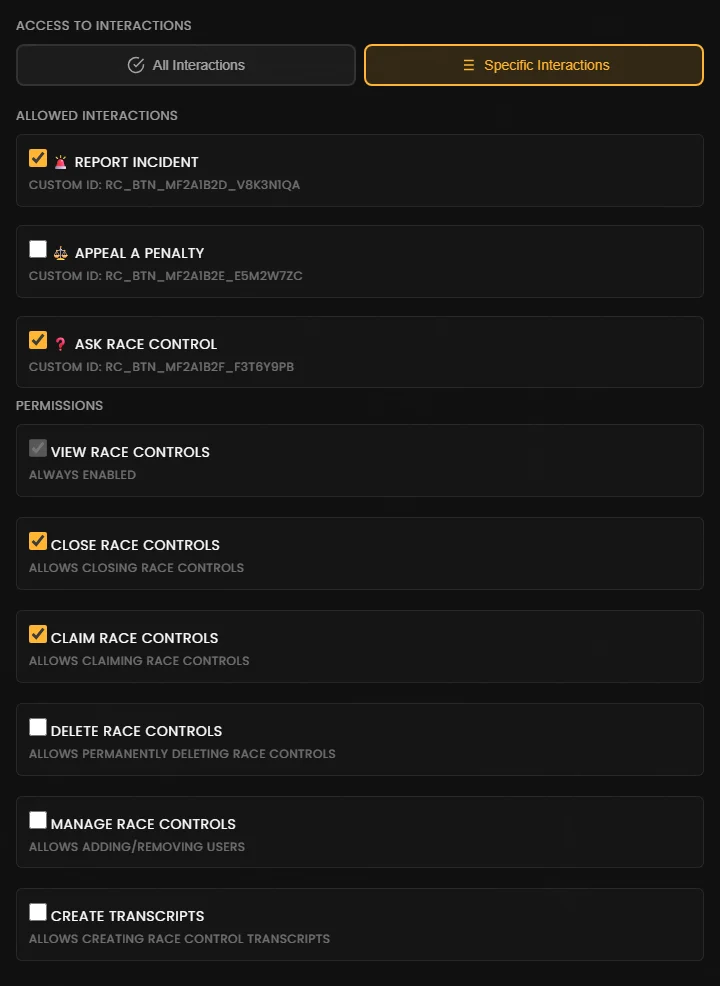
Ist in Schritt 2 „Moderatoren beim Öffnen erwähnen“ an (Standard), beginnt die Willkommensnachricht mit einer Erwähnung jeder Rolle aus Schritt 5, die für die geklickte Interaktion zuständig ist. Alle Mitglieder dieser Rollen bekommen eine Benachrichtigung.
Tipp: Trägst du deine Admin-Rolle mit „Alle Interaktionen“ ein, damit die Leitung jedes RC schließen kann, wird sie bei jedem RC mitgepingt. Soll nur die Rennleitung Bescheid bekommen, schalte den Rollen-Ping ab und erwähne die Rolle selbst im Text der Willkommensnachricht (Typ „Nachricht“) mit <@&Rollen-ID>. Die Rollen-ID kopierst du in Discord per Rechtsklick auf die Rolle, wenn der Entwicklermodus an ist.
If “Mention moderators on open” is on in step 2 (the default), the welcome message starts with a mention of every role from step 5 that is responsible for the clicked interaction. All members of these roles get a notification.
Tip: if you add your admin role with “All Interactions” so your staff can close any RC, it is pinged for every RC as well. If only your stewards should be notified, switch the role ping off and mention the role yourself in the text of the welcome message (“Message” type) with <@&role ID>. You copy the role ID in Discord by right-clicking the role while developer mode is on.
| Ersteller | Hinzugefügte Beteiligte | Rennleitungs-Rolle | Admin ohne Rolle im Panel | |
|---|---|---|---|---|
| RC öffnen | ✅ wenn der Panel-Kanal sichtbar ist | ✅ | ✅ | ✅ |
| RC-Kanal sehen und schreiben | ✅ nur das eigene RC | ✅ nur das RC, in das sie geholt wurden | ✅ alle bzw. die zugeordneten RCs | ✅ Discord-Admins sehen alle Kanäle |
| Beim Öffnen erwähnt | mit „User beim Öffnen erwähnen“ | in den Formular-Antworten | mit „Moderatoren beim Öffnen erwähnen“ | ❌ |
| RC schließen | nur mit „Ersteller kann Race Control schließen“ | ❌ | mit Haken „Race Controls schließen“ | ❌ |
| RC übernehmen (Claim) | ❌ | ❌ | mit Haken „Race Controls claimen“ | ❌ |
Mitglieder hinzufügen oder entfernen (/rc add, /rc remove) | ❌ | ❌ | mit Haken „Race Controls verwalten“ | ❌ |
Transcript speichern, ohne zu schließen (/rc transcript) | ❌ | ❌ | mit Haken „Transkripte erstellen“ | ❌ |
RC ohne Transcript löschen (/rc delete) | ❌ | ❌ | mit Haken „Race Controls löschen“ | ❌ |
| Transcripts im Dashboard | ❌ | ❌ | ❌ | ✅ |
| Panels im Dashboard einrichten | ❌ | ❌ | ❌ | ✅ |
Tipp: Trage deine Admin- oder Liga-Leitungs-Rolle mit „Race Controls schließen“ und „Race Controls claimen“ im Panel ein. Dann kann die Leitung jedes RC abschließen, auch ohne Rennleitungs-Rolle.
/rc add dazu oder nimmst sie mit /rc remove wieder heraus. Alles andere passt du von Hand in Discord an./rc prüft der Bot im Moment des Klicks bzw. Befehls – mit den aktuellen Einstellungen des Panels. Entfernst du eine Rolle aus dem Panel, sehen ihre Mitglieder offene RCs also weiter, können sie aber nicht mehr schließen.Ohne Rennleitungs-Rolle: Hat ein Panel keine Rolle, sehen nur der Ersteller, die Beteiligten aus dem Formular und Discord-Admins das RC – keine Rolle wird gepingt. Schließen, übernehmen und die Befehle /rc nutzen dürfen dann nur Mitglieder mit der Discord-Berechtigung „Kanäle verwalten“ – schließen außerdem der Ersteller, wenn „Ersteller kann Race Control schließen“ an ist. Trage daher immer mindestens eine Rolle mit „Race Controls schließen“ und „Race Controls claimen“ ein.
| Creator | Added drivers involved | Steward role | Admin without a role in the panel | |
|---|---|---|---|---|
| Open an RC | ✅ if the panel channel is visible | ✅ | ✅ | ✅ |
| See and write in the RC channel | ✅ only their own RC | ✅ only the RC they were brought into | ✅ all or the assigned RCs | ✅ Discord admins see every channel |
| Mentioned when opened | with “Mention user on open” | in the form answers | with “Mention moderators on open” | ❌ |
| Close an RC | only with “Creator can close Race Control” | ❌ | with “Close Race Controls” ticked | ❌ |
| Claim an RC | ❌ | ❌ | with “Claim Race Controls” ticked | ❌ |
Add or remove members (/rc add, /rc remove) | ❌ | ❌ | with “Manage Race Controls” ticked | ❌ |
Save a transcript without closing (/rc transcript) | ❌ | ❌ | with “Create Transcripts” ticked | ❌ |
Delete an RC without a transcript (/rc delete) | ❌ | ❌ | with “Delete Race Controls” ticked | ❌ |
| Transcripts in the dashboard | ❌ | ❌ | ❌ | ✅ |
| Set up panels in the dashboard | ❌ | ❌ | ❌ | ✅ |
Tip: add your admin or league management role to the panel with “Close Race Controls” and “Claim Race Controls”. Then your staff can finish any RC, even without a steward role.
/rc add and take them out again with /rc remove. Everything else you adjust by hand in Discord./rc commands are checked at the moment of the click or command – against the panel's current settings. So if you remove a role from the panel, its members still see open RCs but can no longer close them.Without a steward role: if a panel has no role, only the creator, the drivers involved from the form and Discord admins can see the RC – no role is pinged. Closing, claiming and the /rc commands are then only available to members with the Discord permission “Manage Channels” – plus closing for the creator if “Creator can close Race Control” is on. Always add at least one role with “Close Race Controls” and “Claim Race Controls”.
Tritt unserem Discord-Server bei – das Team hilft dir bei der Einrichtung gerne weiter.
Join our Discord server – the team is happy to help you with the setup.