
Discords eigene automatische Moderation, verwaltet im Dashboard: Regeln gegen Spam, Schimpfwörter und Massen-Erwähnungen ansehen, anlegen, bearbeiten und löschen – mit Aktionen und Ausnahmen.
Discord's own automatic moderation, managed in the dashboard: view, create, edit and delete rules against spam, profanity and mass mentions – with actions and exemptions.
AutoMod ist die automatische Moderation, die Discord selbst mitbringt. Du findest sie in Discord unter Server-Einstellungen → AutoMod. Die Seite „Discord AutoMod“ im Dashboard ist eine zweite Oberfläche dafür: Sie zeigt alle Regeln deines Servers, und du kannst dort Regeln anlegen, bearbeiten und löschen.
Wichtig: Einige Teile des Formulars funktionieren derzeit nicht – vor allem lassen sich keine Stichwörter eintragen. Was das für dich bedeutet und wie du es umgehst, steht unter Was im Dashboard derzeit nicht geht.
Testen: Discord nimmt Mitglieder mit „Administrator“ oder „Server verwalten“ in der Regel von AutoMod aus. Teste neue Regeln deshalb mit einem zweiten Konto ohne diese Rechte.
AutoMod is the automatic moderation built into Discord. In Discord you find it under Server Settings → AutoMod. The “Discord AutoMod” page in the dashboard is a second interface for it: it shows every rule on your server, and you can create, edit and delete rules there.
Important: some parts of the form currently do not work – most notably, you cannot enter keywords. What this means for you and how to work around it is explained under What the dashboard cannot do yet.
Testing: Discord usually exempts members with “Administrator” or “Manage Server” from AutoMod. So test new rules with a second account that has neither permission.
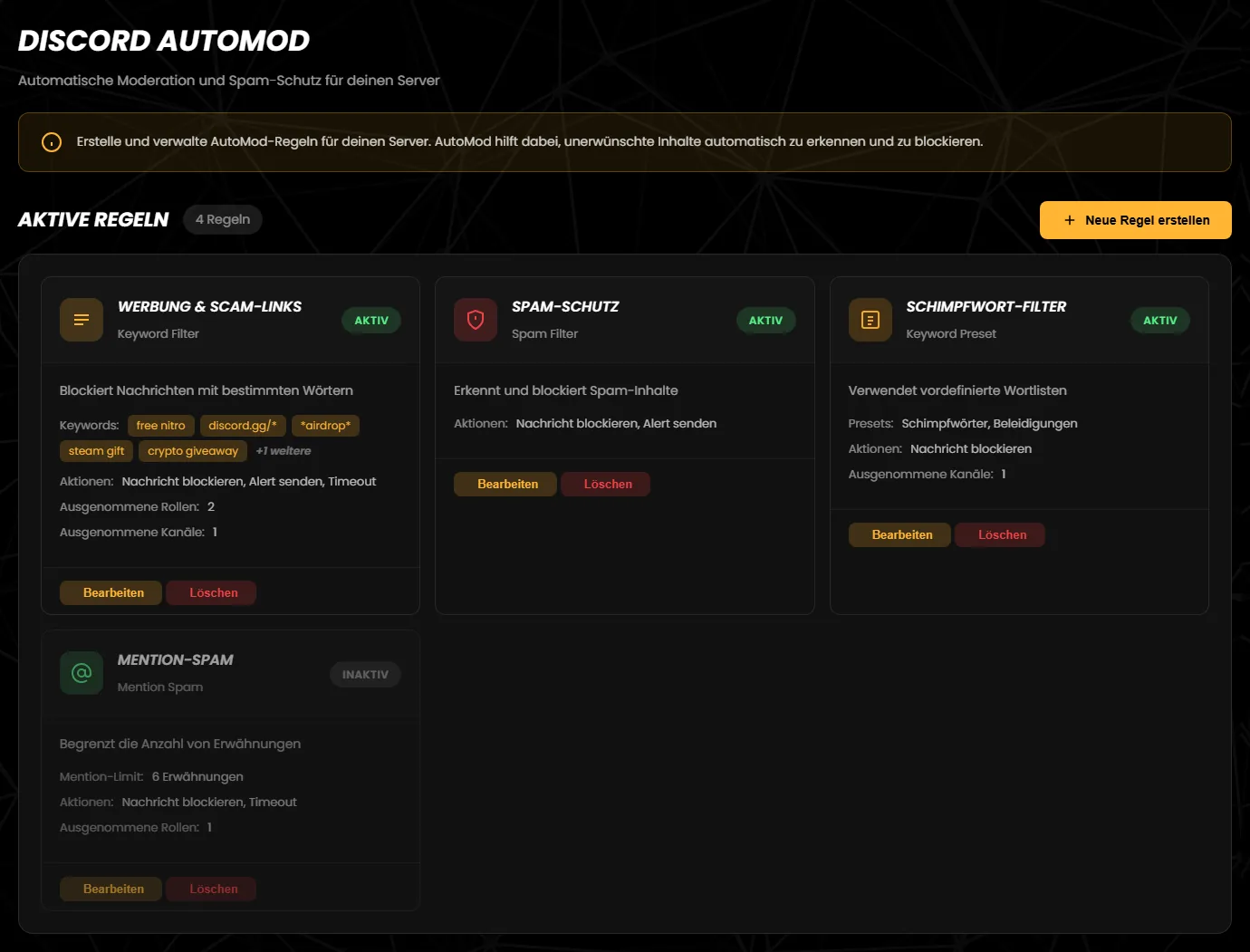
Einen Schnellschalter zum Ein- und Ausschalten gibt es auf der Karte nicht – das geht über „Bearbeiten“, siehe unten.
Tipp: Wechselst du oben die Sprache des Dashboards, bleiben die schon angezeigten Regelkarten in der alten Sprache. Lade die Seite neu, dann passt alles.
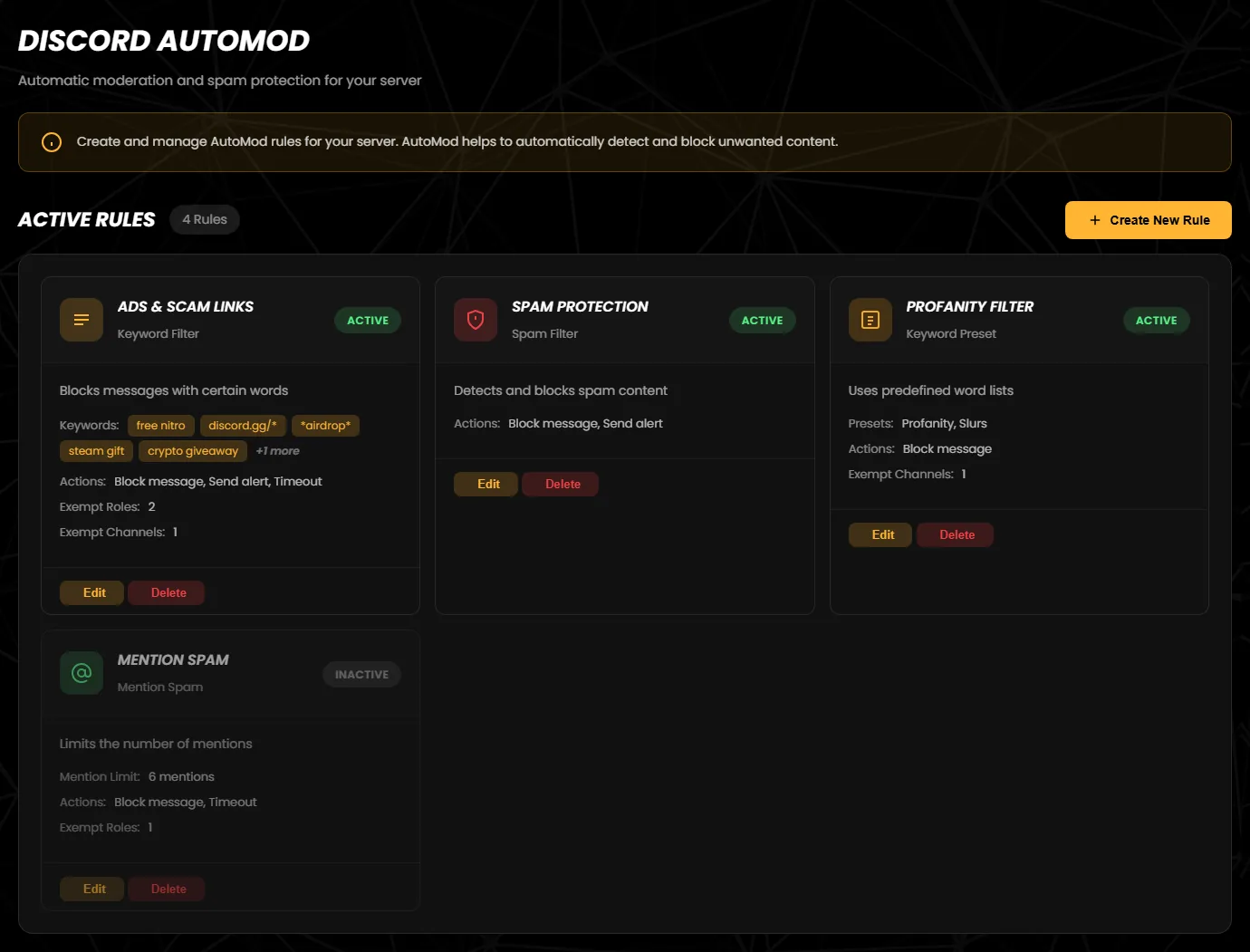
The card has no quick switch for turning a rule on or off – you do that via “Edit”, see below.
Tip: if you switch the dashboard language at the top, the rule cards already on screen stay in the old language. Reload the page and everything matches.
„Neue Regel erstellen“ öffnet das Fenster „Neue Regel erstellen“, „Bearbeiten“ auf einer Karte das Fenster „Regel bearbeiten“. Beide haben dieselben Felder; welche davon erscheinen, hängt vom Regeltyp und den gewählten Aktionen ab.
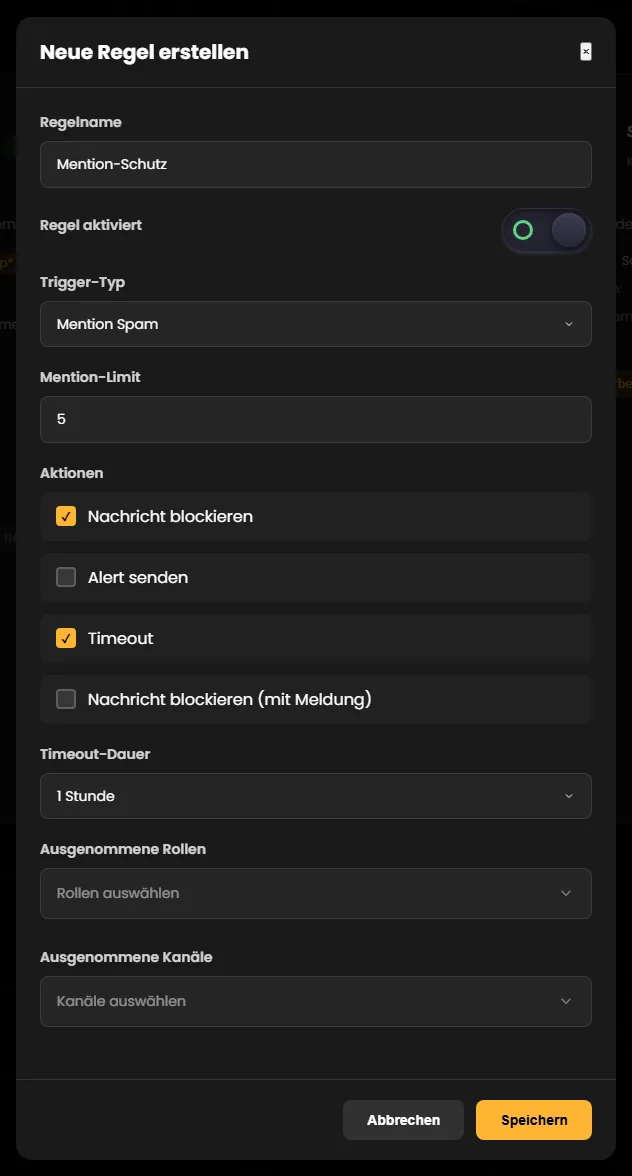
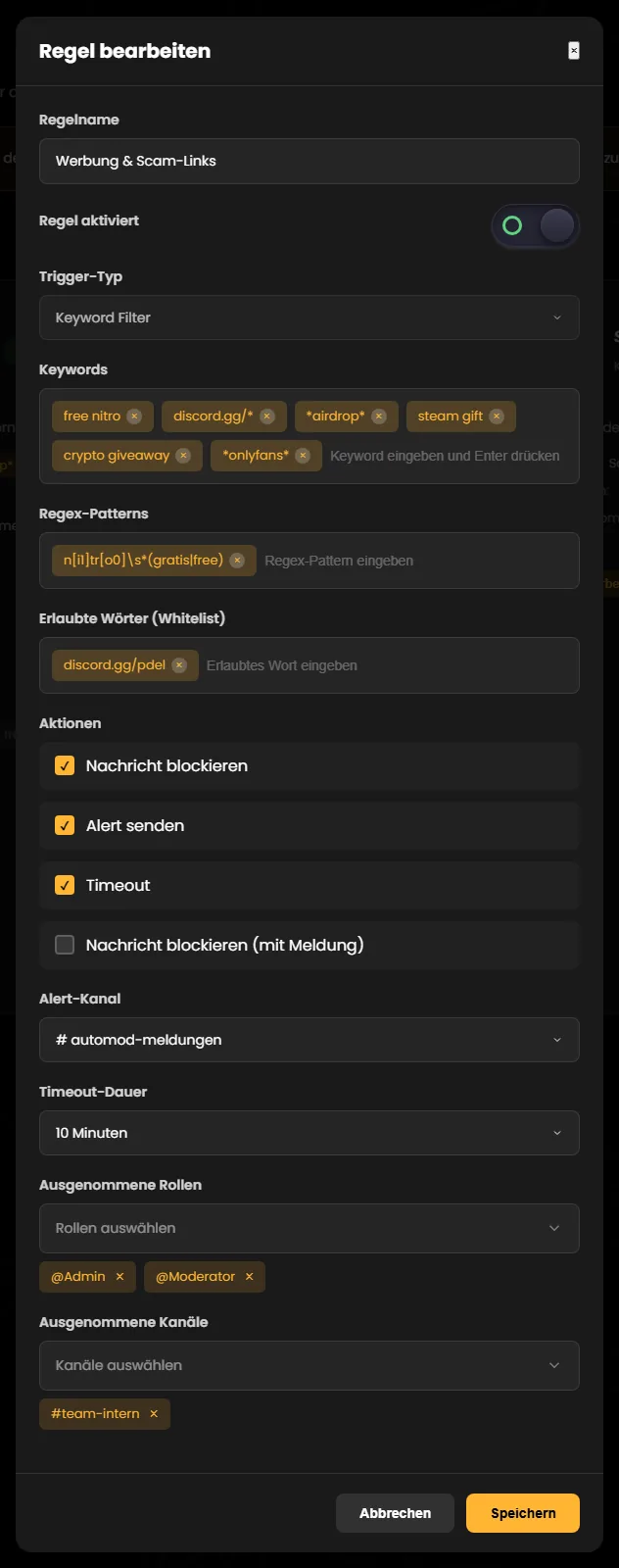
| Feld | Standard | Was es bewirkt |
|---|---|---|
| Regelname Pflicht | leer | Der Name der Regel, auch in Discord sichtbar. Ohne Namen erscheint „Bitte gib einen Namen ein“. |
| Regel aktiviert | an | Aus: Die Regel bleibt bestehen, greift aber nicht. Im Dashboard ist das der einzige Weg, eine Regel ein- oder auszuschalten: „Bearbeiten“ → Schalter → „Speichern“. |
| Trigger-Typ | Keyword Filter | Was die Regel prüft – siehe Regeltypen. Nach dem Anlegen lässt sich der Typ nicht mehr ändern: Beim Bearbeiten ist das Feld gesperrt, weil Discord keinen Wechsel erlaubt. |
| Felder des Typs | je nach Typ | Keywords, Regex-Patterns, Erlaubte Wörter (Whitelist), Wortlisten, Mention-Limit oder Profil-Keywords – siehe Regeltypen. |
| Aktionen | „Nachricht blockieren“ | Was Discord bei einem Treffer tut; mindestens eine Aktion ist nötig – siehe Aktionen. Je nach Aktion erscheinen darunter „Alert-Kanal“, „Timeout-Dauer“ oder „Eigene Nachricht“. |
| Ausgenommene Rollen, Ausgenommene Kanäle | keine | Welche Rollen und Kanäle die Regel nicht prüft – siehe Ausnahmen. |
“Create New Rule” opens the “Create New Rule” window, “Edit” on a card opens “Edit Rule”. Both have the same fields; which of them appear depends on the rule type and the selected actions.
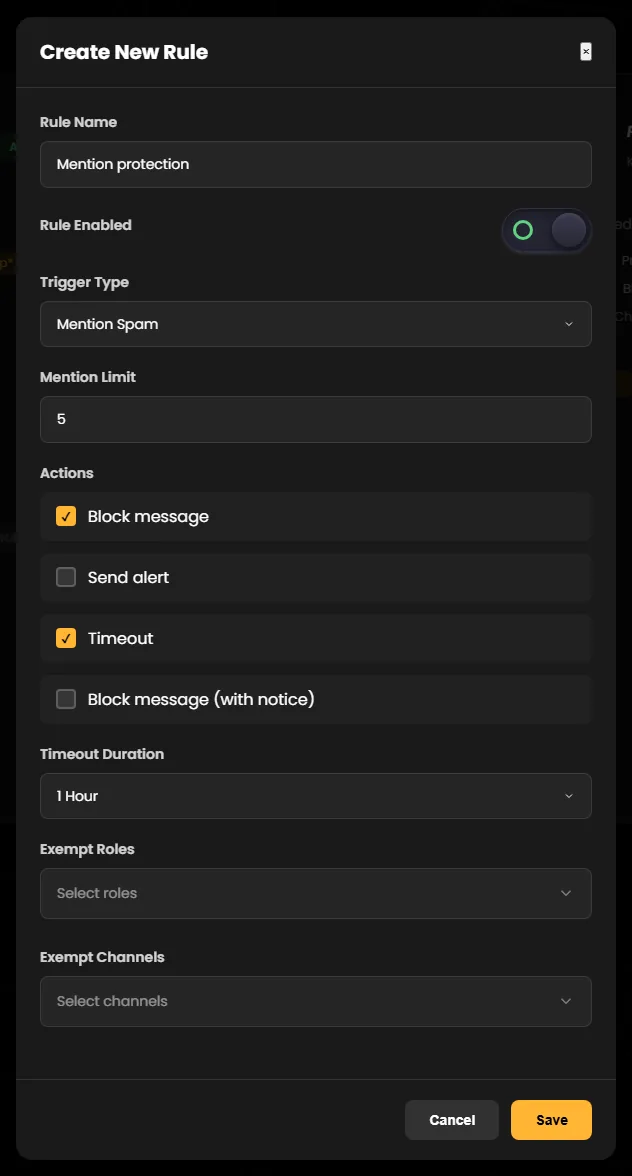
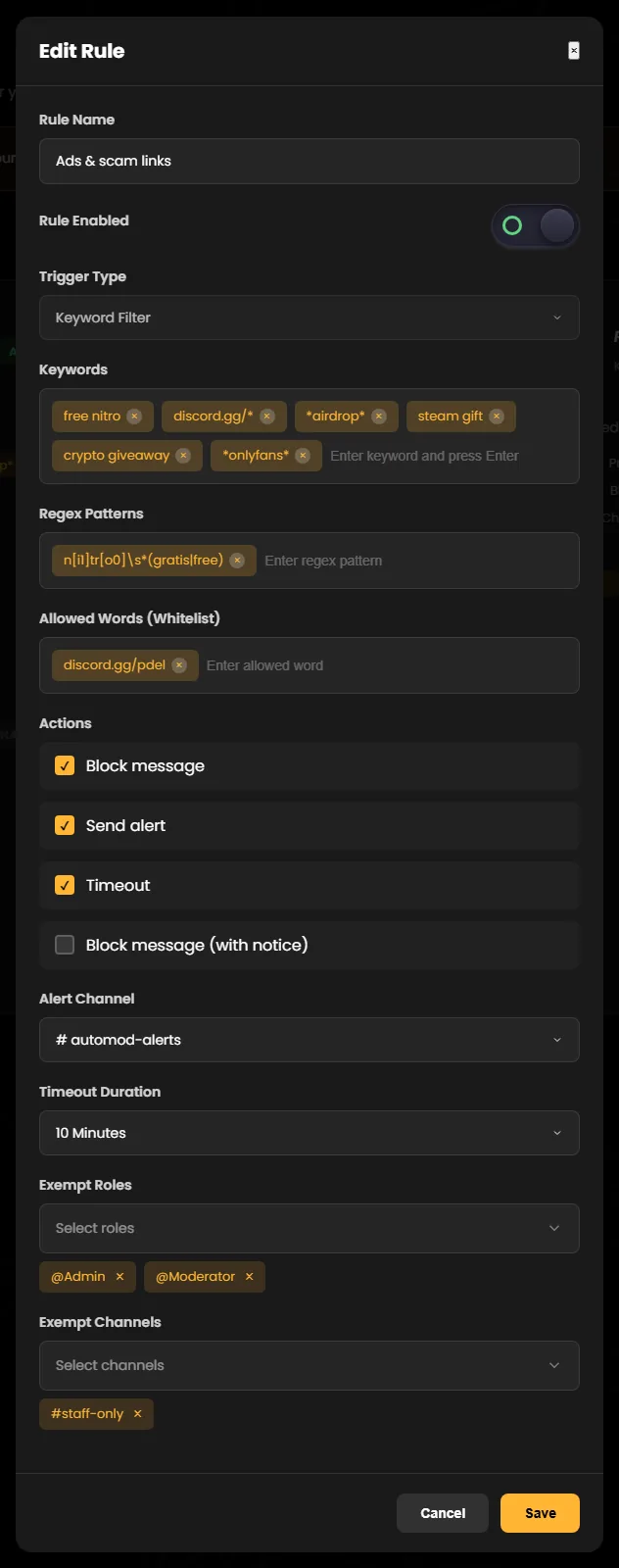
| Field | Default | What it does |
|---|---|---|
| Rule Name required | empty | The rule's name, also visible in Discord. Without a name you see “Please enter a name”. |
| Rule Enabled | on | Off: the rule stays but does not act. In the dashboard this is the only way to switch a rule on or off: “Edit” → switch → “Save”. |
| Trigger Type | Keyword Filter | What the rule checks – see Rule types. Once the rule exists, the type cannot be changed: when editing, the field is locked because Discord does not allow a change. |
| Type fields | depends on the type | Keywords, Regex Patterns, Allowed Words (Whitelist), word lists, Mention Limit or Profile Keywords – see Rule types. |
| Actions | “Block message” | What Discord does on a match; at least one action is required – see Actions. Depending on the action, “Alert Channel”, “Timeout Duration” or “Custom Message” appear below. |
| Exempt Roles, Exempt Channels | none | Which roles and channels the rule does not check – see Exemptions. |
Discord kennt fünf Arten von Regeln. Den Typ wählst du beim Anlegen unter „Trigger-Typ“. Discord begrenzt, wie viele Regeln eines Typs ein Server haben darf. Das Dashboard prüft diese Grenzen nicht vorab – bei einem Verstoß kommt eine englische Fehlermeldung von Discord.
| Typ | Was er prüft | Einstellungen | Pro Server |
|---|---|---|---|
| Keyword Filter | Nachrichten mit bestimmten Wörtern oder Mustern („Blockiert Nachrichten mit bestimmten Wörtern“). | Keywords: bis zu 1000 Einträge mit je höchstens 60 Zeichen; * dient als Platzhalter, etwa discord.gg/* oder *airdrop*. Regex-Patterns: bis zu 10 Muster mit je höchstens 260 Zeichen. Erlaubte Wörter (Whitelist): Ausnahmen, die trotz eines Treffers erlaubt sind. Alle drei Listen lassen sich im Dashboard derzeit nicht füllen – siehe unten. | bis zu 6 |
| Spam Filter | Inhalte, die Discord selbst als Spam erkennt („Erkennt und blockiert Spam-Inhalte“). | Keine. Im Fenster steht „Der Spam-Filter erkennt automatisch Spam-Inhalte. Es sind keine zusätzlichen Einstellungen erforderlich.“ | 1 |
| Keyword Preset | Wörter aus Discords eigenen Wortlisten („Verwendet vordefinierte Wortlisten“). | Drei Listen zum Anhaken: Schimpfwörter (Flüche), Sexuelle Inhalte (sexuell eindeutige Begriffe) und Beleidigungen (auch Hassrede). Keine ist vorausgewählt, und das Dashboard prüft nicht, ob du eine gewählt hast – hake mindestens eine an. „Erlaubte Wörter“ gibt es auch hier, sie lassen sich aber derzeit nicht eintragen. | 1 |
| Mention Spam | Nachrichten mit zu vielen Erwähnungen („Begrenzt die Anzahl von Erwähnungen“). | Mention-Limit: so viele Rollen- und Nutzer-Erwähnungen pro Nachricht sind höchstens erlaubt, Standard 5. Discord erlaubt Werte bis 50. Das Dashboard prüft die Zahl nicht – trag eine Zahl von 1 bis 50 ein und lass das Feld nicht leer. | 1 |
| Member Profile | Mitgliederprofile („Prüft Mitgliederprofile auf Schlüsselwörter“). | Profil-Keywords und Regex-Patterns. Solche Regeln lassen sich im Dashboard derzeit nicht anlegen – siehe unten. | 1 |
Für Mention Spam bietet Discord außerdem einen Raid-Schutz an. Den gibt es im Dashboard nicht; du stellst ihn in Discord ein.
Discord has five kinds of rules. You choose the type under “Trigger Type” when creating a rule. Discord limits how many rules of each type a server may have. The dashboard does not check these limits in advance – if you exceed one, Discord answers with an error message in English.
| Type | What it checks | Settings | Per server |
|---|---|---|---|
| Keyword Filter | Messages containing certain words or patterns (“Blocks messages with certain words”). | Keywords: up to 1,000 entries of at most 60 characters each; * works as a wildcard, for example discord.gg/* or *airdrop*. Regex Patterns: up to 10 patterns of at most 260 characters each. Allowed Words (Whitelist): exceptions that are allowed despite a match. None of the three lists can currently be filled in the dashboard – see below. | up to 6 |
| Spam Filter | Content that Discord itself recognises as spam (“Detects and blocks spam content”). | None. The window says “The spam filter automatically detects spam content. No additional settings are required.” | 1 |
| Keyword Preset | Words from Discord's own word lists (“Uses predefined word lists”). | Three lists to tick: Profanity (swearing), Sexual content (sexually explicit terms) and Slurs (including hate speech). None is ticked by default, and the dashboard does not check whether you picked one – tick at least one. “Allowed Words” exist here too, but currently cannot be entered. | 1 |
| Mention Spam | Messages with too many mentions (“Limits the number of mentions”). | Mention Limit: the maximum number of role and user mentions allowed per message, default 5. Discord allows values up to 50. The dashboard does not check the number – enter a value from 1 to 50 and do not leave the field empty. | 1 |
| Member Profile | Member profiles (“Checks member profiles for keywords”). | Profile Keywords and regex patterns. Such rules currently cannot be created in the dashboard – see below. | 1 |
For Mention Spam, Discord also offers raid protection. The dashboard does not have it; you set it up in Discord.
Unter „Aktionen“ legst du fest, was Discord tut, wenn eine Regel anschlägt. Du kannst mehrere Aktionen kombinieren; mindestens eine ist Pflicht.
| Aktion | Standard | Was passiert |
|---|---|---|
| Nachricht blockieren | an | Discord lässt die Nachricht nicht erscheinen; das Mitglied sieht einen allgemeinen Hinweis von Discord. Eine eigene Erklärung dazu lässt sich nur in Discord einstellen. |
| Alert senden | aus | Discord postet eine Meldung über den Treffer in den „Alert-Kanal“, zum Beispiel #automod-meldungen. Zur Auswahl stehen nur Text-Kanäle. Wählst du keinen Kanal, lässt das Dashboard die Aktion beim Speichern ohne Hinweis weg. |
| Timeout | aus | Discord schickt das Mitglied für die „Timeout-Dauer“ in den Timeout: 60 Sekunden, 5 Minuten, 10 Minuten, 1 Stunde, 1 Tag oder 1 Woche (Standard: 60 Sekunden). Discord erlaubt Timeouts nur bei Keyword Filter und Mention Spam – bei anderen Typen lehnt Discord die Regel mit einer englischen Fehlermeldung ab, obwohl das Dashboard die Aktion anbietet. Der Bot braucht dafür die Berechtigung „Mitglieder im Timeout“. |
| Nachricht blockieren (mit Meldung) derzeit ohne Wirkung | aus | Die „Eigene Nachricht“ bekommen Mitglieder nie zu sehen, denn die Option speichert in Discord nicht die gewünschte Aktion. Lass sie aus – Discord kann die Regel damit auch ablehnen. Eine eigene Blockiermeldung stellst du in Discord bei der Regel ein. |
Mindestens eine Aktion: Ist keine Aktion angehakt – oder nur „Alert senden“ ohne Alert-Kanal –, erscheint derzeit statt eines verständlichen Hinweises der technische Text „automod.errors.actionRequired“. Hake dann mindestens eine Aktion an oder wähle einen Alert-Kanal.
Under “Actions” you decide what Discord does when a rule is triggered. You can combine several actions; at least one is required.
| Action | Default | What happens |
|---|---|---|
| Block message | on | Discord does not let the message appear; the member sees a general notice from Discord. A custom explanation can only be set up in Discord. |
| Send alert | off | Discord posts a message about the match in the “Alert Channel”, for example #automod-alerts. Only text channels can be selected. If you pick no channel, the dashboard silently drops the action when saving. |
| Timeout | off | Discord times the member out for the “Timeout Duration”: 60 Seconds, 5 Minutes, 10 Minutes, 1 Hour, 1 Day or 1 Week (default: 60 seconds). Discord only allows timeouts for Keyword Filter and Mention Spam – for other types Discord rejects the rule with an English error message, even though the dashboard offers the action. The bot needs the “Timeout Members” permission for it. |
| Block message (with notice) currently has no effect | off | Members never get to see the “Custom Message”, because the option does not store the intended action in Discord. Leave it off – Discord may also reject the rule because of it. You set up a custom block message for the rule in Discord. |
At least one action: if no action is ticked – or only “Send alert” without an alert channel – you currently see the technical text “automod.errors.actionRequired” instead of a clear notice. Tick at least one action or choose an alert channel.
Mit Ausnahmen nimmst du Rollen oder Kanäle von einer Regel aus. Nachrichten von Mitgliedern mit einer ausgenommenen Rolle und Nachrichten in ausgenommenen Kanälen prüft die Regel nicht.
| Feld | So wählst du aus | Grenzen |
|---|---|---|
| Ausgenommene Rollen | Klick auf „Rollen auswählen“ und hake Rollen an. Sie erscheinen darunter als Chips, zum Beispiel @Admin und @Moderator; das × entfernt sie wieder. | @everyone und Rollen, die von Discord oder einer App verwaltet werden (etwa Bot-Rollen), stehen nicht zur Auswahl. Discord erlaubt bis zu 20 Rollen pro Regel. |
| Ausgenommene Kanäle | Klick auf „Kanäle auswählen“ und hake Kanäle an, zum Beispiel #team-intern. | Nur Text-Kanäle – keine Kategorien, Ankündigungs-, Sprach- oder Forenkanäle. Discord erlaubt bis zu 50 Kanäle pro Regel. |
Auf der Regelkarte steht nur die Anzahl, etwa „Ausgenommene Rollen: 2“. Die Grenzen von Discord prüft das Dashboard nicht vorab.
Tipp: Ganze Kategorien kannst du nur in Discord ausnehmen. Hat eine Regel solche Ausnahmen, bearbeite sie besser in Discord – siehe nächster Abschnitt.
Exemptions take roles or channels out of a rule. The rule does not check messages from members with an exempt role or messages in exempt channels.
| Field | How to select | Limits |
|---|---|---|
| Exempt Roles | Click “Select roles” and tick roles. They appear below as chips, for example @Admin and @Moderator; the × removes them again. | @everyone and roles managed by Discord or an app (such as bot roles) are not offered. Discord allows up to 20 roles per rule. |
| Exempt Channels | Click “Select channels” and tick channels, for example #staff-only. | Text channels only – no categories, announcement, voice or forum channels. Discord allows up to 50 channels per rule. |
The rule card only shows the number, for example “Exempt Roles: 2”. The dashboard does not check Discord's limits in advance.
Tip: whole categories can only be exempted in Discord. If a rule has such exemptions, better edit it in Discord – see the next section.
Wichtig: Stichwörter, Regex-Muster und erlaubte Wörter lassen sich im Dashboard derzeit nicht hinzufügen – Enter im Eingabefeld tut nichts. Lege sie in Discord an: Server-Einstellungen → AutoMod. Im Dashboard siehst du vorhandene Einträge und kannst sie mit dem × entfernen.
Das Dashboard kennt nicht alle Einstellungen, die Discord bietet. Bearbeitest du eine in Discord gepflegte Regel und speicherst sie im Dashboard, kann dabei etwas verloren gehen:
Faustregel: Regeln mit Einstellungen, die das Dashboard nicht kennt – eigene Blockiermeldung, Kategorie-Ausnahmen, Raid-Schutz –, bearbeitest du besser in Discord.
Important: keywords, regex patterns and allowed words currently cannot be added in the dashboard – pressing Enter in the input field does nothing. Add them in Discord: Server Settings → AutoMod. In the dashboard you can see existing entries and remove them with the ×.
The dashboard does not know every setting Discord offers. If you edit a rule maintained in Discord and save it in the dashboard, something may get lost:
Rule of thumb: edit rules with settings the dashboard does not know – custom block message, category exemptions, raid protection – in Discord.
Klicke auf der Regelkarte auf „Löschen“. Es folgt die Rückfrage „Regel löschen?“: „Bist du sicher, dass du diese Regel löschen möchtest? Diese Aktion kann nicht rückgängig gemacht werden.“ Mit „Ja, löschen“ ist die Regel weg, mit „Abbrechen“ bleibt sie.
Tipp: Willst du eine Regel nur pausieren, schalte sie aus: „Bearbeiten“ → „Regel aktiviert“ aus → „Speichern“. Die Regel bleibt dann bestehen. Regeln mit Einstellungen, die das Dashboard nicht kennt, schaltest du besser in Discord aus.
Click “Delete” on the rule card. A confirmation follows, “Delete Rule?”: “Are you sure you want to delete this rule? This action cannot be undone.” “Yes, delete” removes the rule, “Cancel” keeps it.
Tip: if you only want to pause a rule, switch it off: “Edit” → “Rule Enabled” off → “Save”. The rule then stays in place. Rules with settings the dashboard does not know are better switched off in Discord.
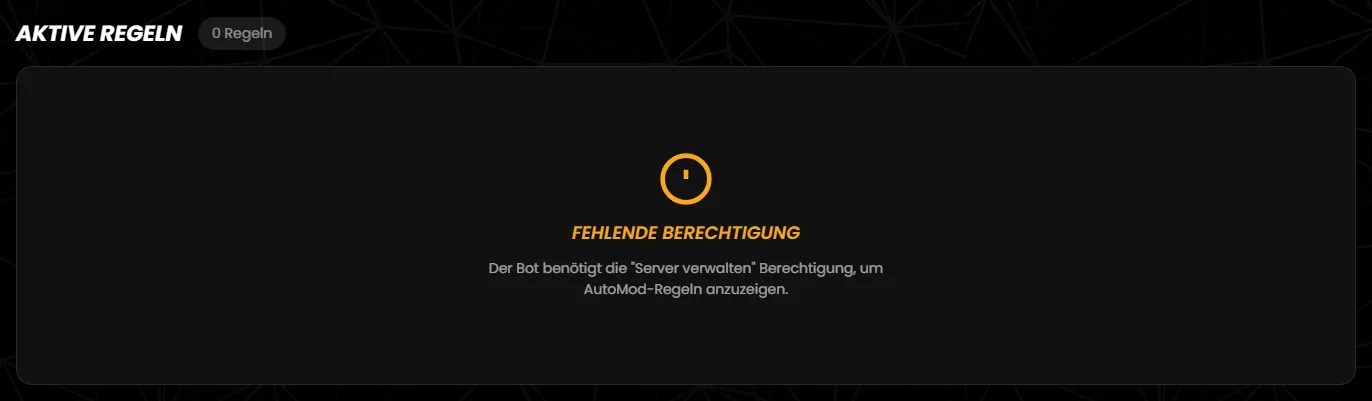
Meldungen vom Server und von Discord erscheinen unten auf der Seite – immer auf Englisch, auch in der deutschen Oberfläche. Oft sind sie allgemein gehalten, etwa „Invalid Form Body“; Einzelheiten zeigt das Dashboard nicht.
| Meldung | Ursache und Lösung |
|---|---|
| automod.errors.actionRequired | Keine Aktion angehakt – oder nur „Alert senden“ ohne Alert-Kanal. Hake mindestens eine Aktion an. |
| Bitte gib einen Namen ein | Der Regelname fehlt. |
| Missing permissions to create AutoMod rules (ebenso „… to update …“ und „… to delete …“) | Dem Bot fehlt „Server verwalten“. |
| Invalid rule configuration, Invalid Form Body oder ein anderer Text von Discord | Discord hat die Regel abgelehnt. Mögliche Gründe: Die Grenze pro Server ist erreicht (etwa eine zweite Regel vom Typ Spam Filter oder eine siebte vom Typ Keyword Filter), ein Timeout bei einem anderen Typ als Keyword Filter oder Mention Spam, oder die Option „Nachricht blockieren (mit Meldung)“. |
| Failed to fetch AutoMod rules, Discord API temporarily unavailable | Die Regeln konnten nicht geladen werden; die Seite zeigt dann „Fehler beim Laden“ mit diesem Text. Warte kurz und lade die Seite neu. |
| Failed to create AutoMod rule, Failed to update AutoMod rule, Failed to delete AutoMod rule | Speichern oder Löschen hat nicht geklappt. Versuche es noch einmal. |
| Access denied: admin permissions required, Access denied: not a member of this server | Dir fehlt auf diesem Server die Discord-Berechtigung „Administrator“, oder du bist dort kein Mitglied. |
| Session expired. Please log in again. | Deine Anmeldung ist abgelaufen. Melde dich neu an. |
| Discord rate limit reached, please try again shortly. | Zu viele Anfragen in kurzer Zeit. Warte einen Moment. |
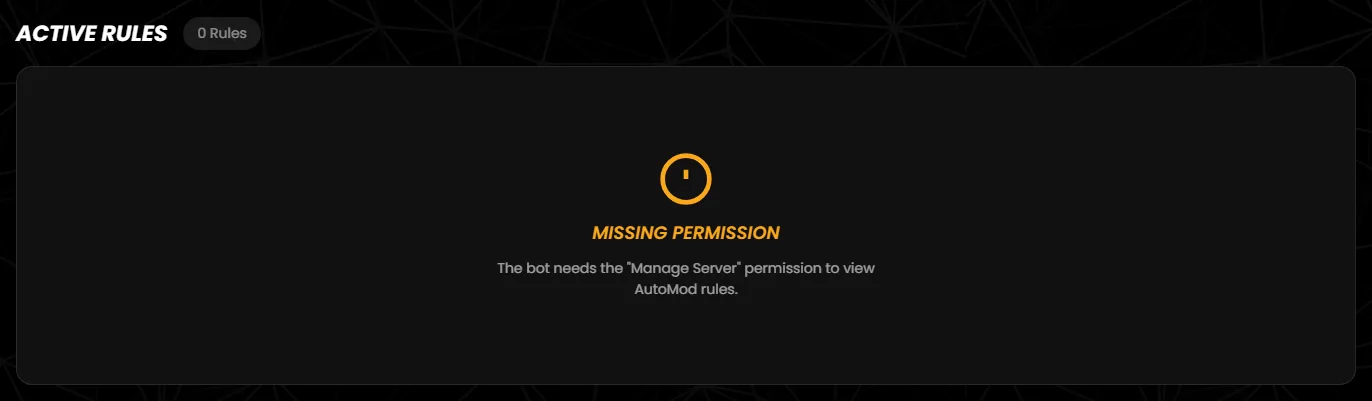
Messages from the server and from Discord appear at the bottom of the page – always in English. They are often quite general, for example “Invalid Form Body”; the dashboard does not show any details.
| Message | Cause and fix |
|---|---|
| automod.errors.actionRequired | No action ticked – or only “Send alert” without an alert channel. Tick at least one action. |
| Please enter a name | The rule name is missing. |
| Missing permissions to create AutoMod rules (likewise “… to update …” and “… to delete …”) | The bot lacks “Manage Server”. |
| Invalid rule configuration, Invalid Form Body or another text from Discord | Discord rejected the rule. Possible reasons: the per-server limit is reached (for example a second Spam Filter rule or a seventh Keyword Filter rule), a timeout on a type other than Keyword Filter or Mention Spam, or the option “Block message (with notice)”. |
| Failed to fetch AutoMod rules, Discord API temporarily unavailable | The rules could not be loaded; the page then shows “Error loading” with this text. Wait a moment and reload the page. |
| Failed to create AutoMod rule, Failed to update AutoMod rule, Failed to delete AutoMod rule | Saving or deleting did not work. Try again. |
| Access denied: admin permissions required, Access denied: not a member of this server | You do not have the Discord permission “Administrator” on this server, or you are not a member there. |
| Session expired. Please log in again. | Your login has expired. Log in again. |
| Discord rate limit reached, please try again shortly. | Too many requests in a short time. Wait a moment. |
Tritt unserem Discord-Server bei – das Team hilft dir bei der Einrichtung gerne weiter.
Join our Discord server – the team is happy to help you with the setup.