
Mitglieder öffnen per Klick einen privaten Kanal mit deinem Support-Team – auf Wunsch mit Formular, mit Zuständigkeit per Claim und mit automatischem Transcript beim Schließen.
Members open a private channel with your support team in one click – with an optional form, claiming to show who is in charge and an automatic transcript when the ticket is closed.
Mit dem Ticket-System richtest du auf deinem Discord-Server einen geordneten Support ein. Im Dashboard gestaltest du eine Nachricht mit Buttons oder einem Auswahlmenü – das Panel. Der Bot postet sie in einen Kanal deiner Wahl.
Klickt ein Mitglied auf einen Button, legt der Bot einen eigenen Text-Kanal an, den nur dieses Mitglied und dein Support-Team sehen. Dort wird das Anliegen besprochen. Ist alles geklärt, wird das Ticket geschlossen: Der Bot speichert den kompletten Verlauf als Transcript und löscht den Kanal.
Du kannst beliebig viele Panels anlegen, zum Beispiel eines für allgemeinen Support und eines für Fahrer-Bewerbungen. Jedes Panel hat eigene Buttons, Formulare, Nachrichten und Support-Rollen.
The ticket system gives your Discord server an organised support desk. In the dashboard you design a message with buttons or a select menu – the panel. The bot posts it in a channel of your choice.
When a member clicks a button, the bot creates a text channel that only this member and your support team can see. The request is handled there. Once everything is sorted, the ticket is closed: the bot saves the whole conversation as a transcript and deletes the channel.
You can create as many panels as you like, for example one for general support and one for driver applications. Every panel has its own buttons, forms, messages and support roles.
| Begriff | Bedeutung |
|---|---|
| Panel | Die Nachricht mit Buttons oder Auswahlmenü im Panel-Kanal – und alle Einstellungen dahinter. Ein Server kann mehrere Panels haben. |
| Interaktion | Jeder Button und jede einzelne Option eines Auswahlmenüs. Für jede Interaktion kannst du ein eigenes Formular, eine eigene Willkommensnachricht und eigene Rollen-Zugriffe festlegen. |
| Formular (Modal) | Ein Fenster in Discord, das vor dem Öffnen des Tickets Angaben abfragt, zum Beispiel Betreff und Beschreibung. |
| Ticket-Kanal | Der private Text-Kanal, den der Bot für jedes Ticket anlegt. |
| Willkommensnachricht | Die erste Nachricht des Bots im Ticket-Kanal, mit den Buttons „Ticket schließen“ und „Ticket beanspruchen“. |
| Support-Rolle | Eine Discord-Rolle, die du im Panel einträgst. Ihre Mitglieder sehen die Tickets und dürfen sie – je nach Haken – schließen oder übernehmen. |
| Claim (beanspruchen) | Ein Teammitglied übernimmt ein Ticket, damit alle sehen, wer sich kümmert. |
| Transcript | Die gespeicherte Kopie des gesamten Ticket-Verlaufs. Du rufst sie im Dashboard auf. |
| Log-Kanal | Ein optionaler Kanal, in dem der Bot neue und geschlossene Tickets meldet. |
| Term | Meaning |
|---|---|
| Panel | The message with buttons or a select menu in the panel channel – plus all the settings behind it. A server can have several panels. |
| Interaction | Every button and every single option of a select menu. For each interaction you can set up its own form, its own welcome message and its own role access. |
| Form (modal) | A window in Discord that asks for details before the ticket is opened, for example a subject and a description. |
| Ticket channel | The private text channel the bot creates for each ticket. |
| Welcome message | The bot's first message in the ticket channel, with the buttons “Close Ticket” and “Claim Ticket”. |
| Support role | A Discord role you add to the panel. Its members see the tickets and – depending on the ticks you set – may close or claim them. |
| Claim | A team member takes over a ticket so everyone can see who is handling it. |
| Transcript | The saved copy of the whole ticket conversation. You open it in the dashboard. |
| Log channel | An optional channel where the bot reports new and closed tickets. |
#support.#support.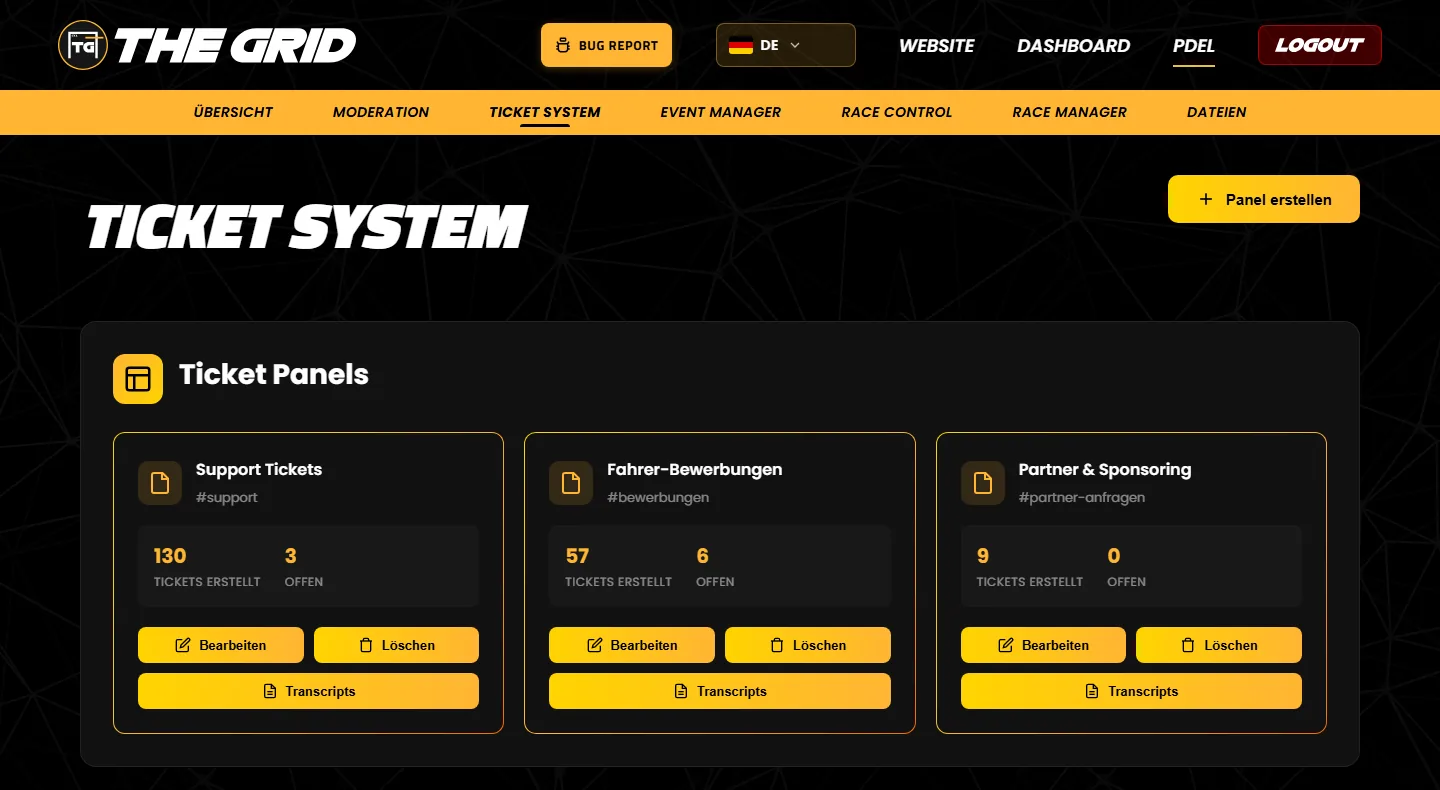
Das Dashboard zeigt nur diese Zahlen. Geöffnet, übernommen und geschlossen werden Tickets in Discord.
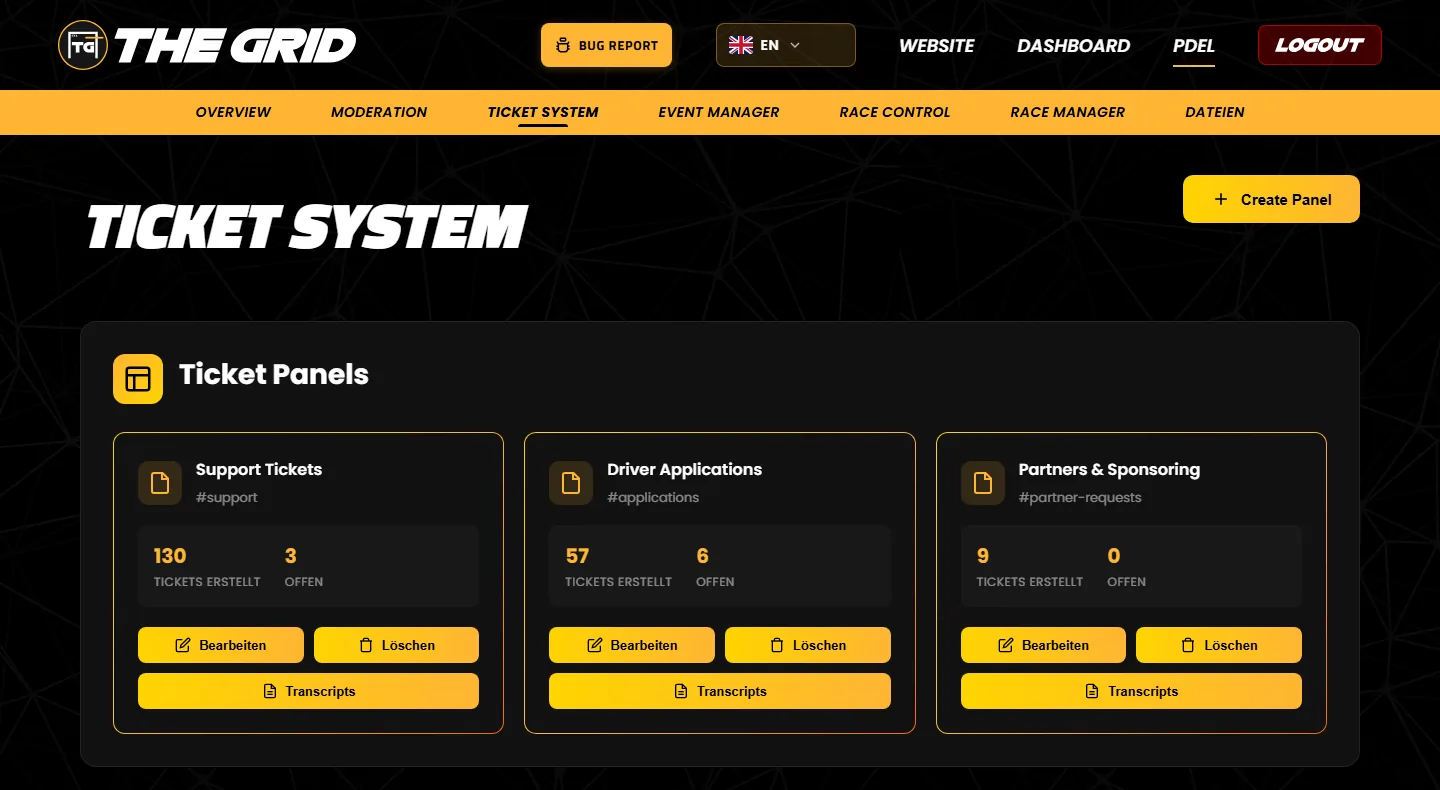
The labels on the cards are currently only shown in German:
The dashboard only shows these numbers. Tickets are opened, claimed and closed in Discord.
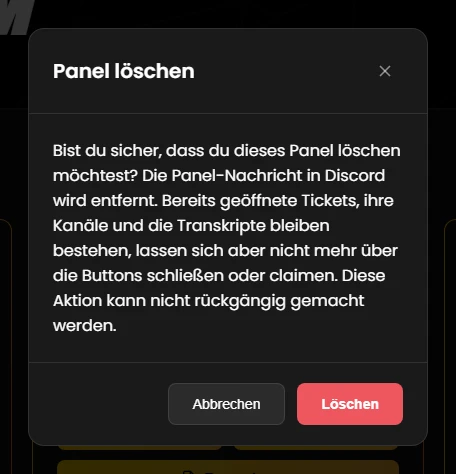
Beim Löschen passiert Folgendes:
/ticket delete löschen können solche Tickets nur noch Mitglieder mit der Discord-Berechtigung „Kanäle verwalten“.Tipp: Schließe vor dem Löschen alle offenen Tickets per Button und sichere wichtige Transcripts (Transcript öffnen, dann im Browser „Seite speichern unter“). Willst du nur die Nachricht erneuern, musst du nicht löschen – siehe Panel bearbeiten.
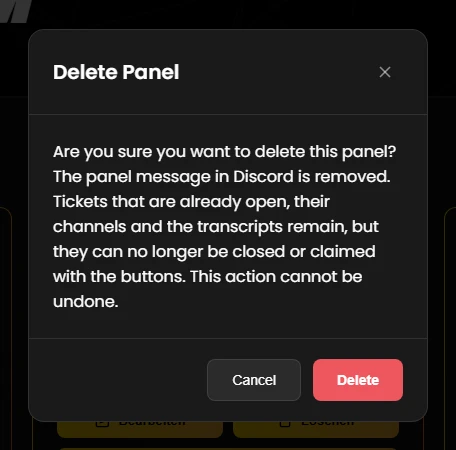
When you delete a panel:
/ticket delete.Tip: Before deleting, close all open tickets with the button and save important transcripts (open the transcript, then use “Save page as” in your browser). If you only want to refresh the message, you do not need to delete anything – see Editing a panel.
In etwa zehn Minuten steht ein einfaches Support-Panel. Die Details zu jedem Schritt findest du im Panel-Editor.
#support an, optional einen Kanal #ticket-logs, den nur das Team sieht.#support) und die Ticket Kategorie („Tickets“). Beides ist Pflicht. Den Log-Kanal kannst du hier gleich mit eintragen.Testen: Öffne ein Ticket am besten mit einem zweiten Discord-Konto ohne Support-Rolle. So siehst du genau, was deine Mitglieder sehen.
A simple support panel is ready in about ten minutes. You will find the details of every step in the panel editor guide.
#support, optionally also a channel #ticket-logs that only your team can see.#support) and the Ticket Category (“Tickets”). Both are required. You can set the log channel here as well.Testing: Open a ticket with a second Discord account that has no support role. That way you see exactly what your members see.
Das Ticket-System ist derzeit in allen Tarifen ohne Begrenzung nutzbar: beliebig viele Panels, Tickets und Transcripts.
Wer den Panel-Kanal sieht, kann ein Ticket öffnen. Wer das darf, steuerst du über die Kanal-Berechtigungen des Panel-Kanals in Discord.
Löscht jemand einen Ticket-Kanal von Hand, entsteht kein Transcript. Das Ticket gilt dann einfach als geschlossen.
Ein geschlossenes Ticket lässt sich nicht wieder öffnen, sein Kanal ist gelöscht. Das Transcript bleibt im Dashboard.
Der Bot antwortet in der Hauptsprache deines Servers: Englisch, wenn in Discord Englisch eingestellt ist, sonst Deutsch. Mehr dazu unter Ablauf in Discord.
Mit /ticket add, remove, transcript und delete verwaltet dein Team offene Tickets direkt im Kanal. Details
The ticket system is currently available in every plan without limits: as many panels, tickets and transcripts as you like.
Anyone who can see the panel channel can open a ticket. You control who that is with the channel permissions of the panel channel in Discord.
If someone deletes a ticket channel by hand, no transcript is created. The ticket then simply counts as closed.
A closed ticket cannot be reopened; its channel is deleted. The transcript stays in the dashboard.
The bot replies in your server's primary language: English if English is set in Discord, otherwise German. More under Tickets in Discord.
With /ticket add, remove, transcript and delete your team manages open tickets right in the channel. Details
Alle sechs Schritte: Panel-Nachricht, Ticket-Einstellungen, Willkommensnachricht, Prüfen und Speichern.
Zur Seite →Zwölf Feldtypen vom Textfeld bis zum Datei-Upload – und wie die Antworten im Ticket landen.
Zur Seite →Welche Rolle welche Tickets sieht und wer schließen oder übernehmen darf.
Zur Seite →Was Mitglieder und Team in Discord sehen – mit allen Texten des Bots.
Zur Seite →Gespeicherte Tickets finden, durchsuchen und ansehen.
Zur Seite →Fehlermeldungen verstehen und die häufigsten Fragen klären.
Zur Seite →All six steps: panel message, ticket settings, welcome message, checking and saving.
Open page →Twelve field types from text fields to file uploads – and how the answers end up in the ticket.
Open page →Which role sees which tickets and who may close or claim them.
Open page →What members and your team see in Discord – with all of the bot's messages.
Open page →Find, search and read saved tickets.
Open page →Understand error messages and get quick answers to common questions.
Open page →Tritt unserem Discord-Server bei – das Team hilft dir bei der Einrichtung gerne weiter.
Join our Discord server – the team is happy to help you with the setup.